

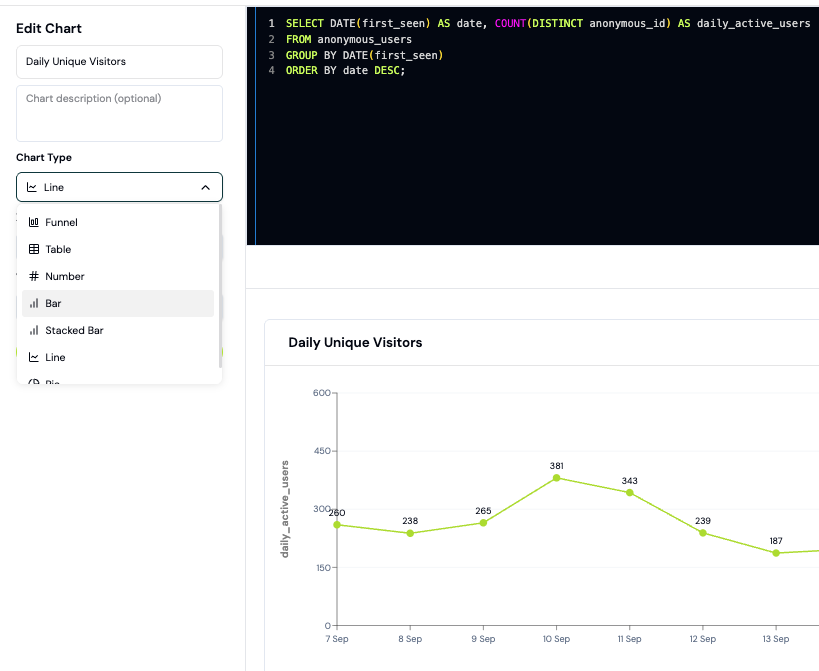
Create custom charts and dashboards with your data.
- Create custom charts and reports with SQL.
- Use Ask AI to build charts and explore your data with natural language.
- Query your data from Claude, Cursor, or other AI tools via MCP.
- Connect external BI tools directly to Formo.
Features
Autocomplete
The query editor supports autocomplete for SQL including:- Table names
- Table columns
- ClickHouse SQL keywords and functions
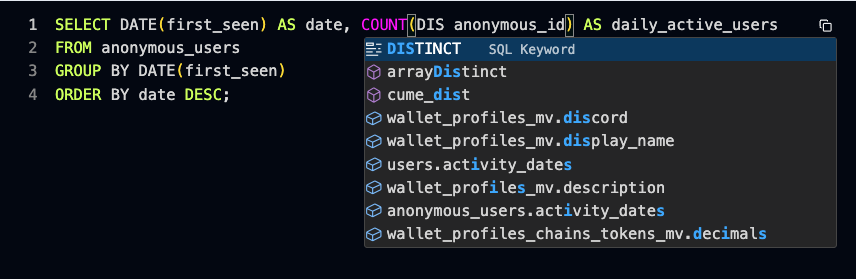
Easily write and fix SQL code in the SQL editor to query your data.
Text to SQL
The query editor comes with tools to ask AI to write and fix SQL code for you.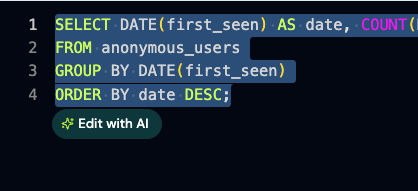
You can ask AI to write and fix SQL code.
Ask AI
Use Ask AI to build charts and explore your data with natural language.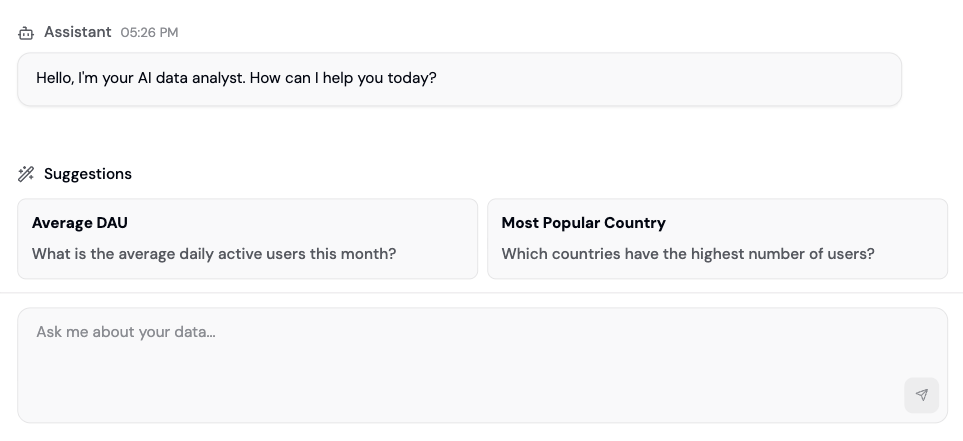
Ask AI to build a chart or explore your data.
- Answer questions about your data
- Generate SQL queries
- Build custom charts and boards
- Surface patterns in your data
Export CSV
Export the results of any query into a CSV file for use elsewhere in your data stack.Dune Integration
Charts can query on-chain data from Dune.dune query.
Dune charts require a Dune API key set in Project Settings → Integrations. See Dune integration for setup instructions.
Chart types
Here is the current list of supported chart types on Formo:- Funnel
- Flow
- Retention
- Table
- Number
- Bar
- Stacked Bar
- Line
- Area
- Pie
How to build a custom dashboard
Create a custom dashboard with charts to track your key metrics. This guide walks you through creating charts using both SQL and the AI assistant.Step 1: Create a board
- Go to the Formo Dashboard
- Select your project
- Click Dashboards in the left navigation
- Click Add board to create a new dashboard
- Click Add Chart to add your first visualization
Step 2: Create a chart with Ask AI (Recommended)
The easiest way to create charts is using natural language:- Click Ask AI in the sidebar
- Describe what you want to see:
- “Show me daily active users over the last 30 days”
- “What are my top 10 referrers by transaction count?”
- “Chart wallet connects by country this month”
- AI generates the SQL query and chart
- Click Add to Dashboard
Ask AI to generate charts from natural language.
Step 3: Create a chart with SQL
For more control, write SQL directly:- Click Add Chart > Blank chart
- Write your query using Formo’s schema
- Click Run to preview results
- Choose your visualization type
- Click Save Chart
The SQL editor with autocomplete for table and column names.
Step 4: Choose a visualization
After running your query, select the chart type that best represents your data:Step 5: Organize your board
Arrange charts into a dashboard layout:- Open your board from Dashboards in the sidebar
- Open the board actions menu and select Edit layout
- Use the up and down arrows on each chart to reorder it
- Click Save layout when you’re done
Step 6: Share your dashboard
Share insights with your team:- Export - Download individual charts as CSV
- Share link - Generate a view-only dashboard link
- BI tools - Connect Metabase, Tableau, or other tools via direct database access
Example: Weekly metrics dashboard
Here’s a starter dashboard with common metrics:
Use Ask AI to generate each chart, then arrange them on your dashboard.