

Part 1: Create Your Custom Board
Navigate to Dashboards in the sidebar. Click Add board. Name your board (e.g., “Growth Metrics” or “Protocol Health”). This is your custom dashboard page where all charts will live.Part 2: Add a Chart
Click Add Chart on your board. In the chart builder:- Select Line chart type (or Bar for comparison)
- Write a SQL query for your metric (e.g., daily unique wallets, transaction count) or load an example.
Part 3: Add Funnel Chart
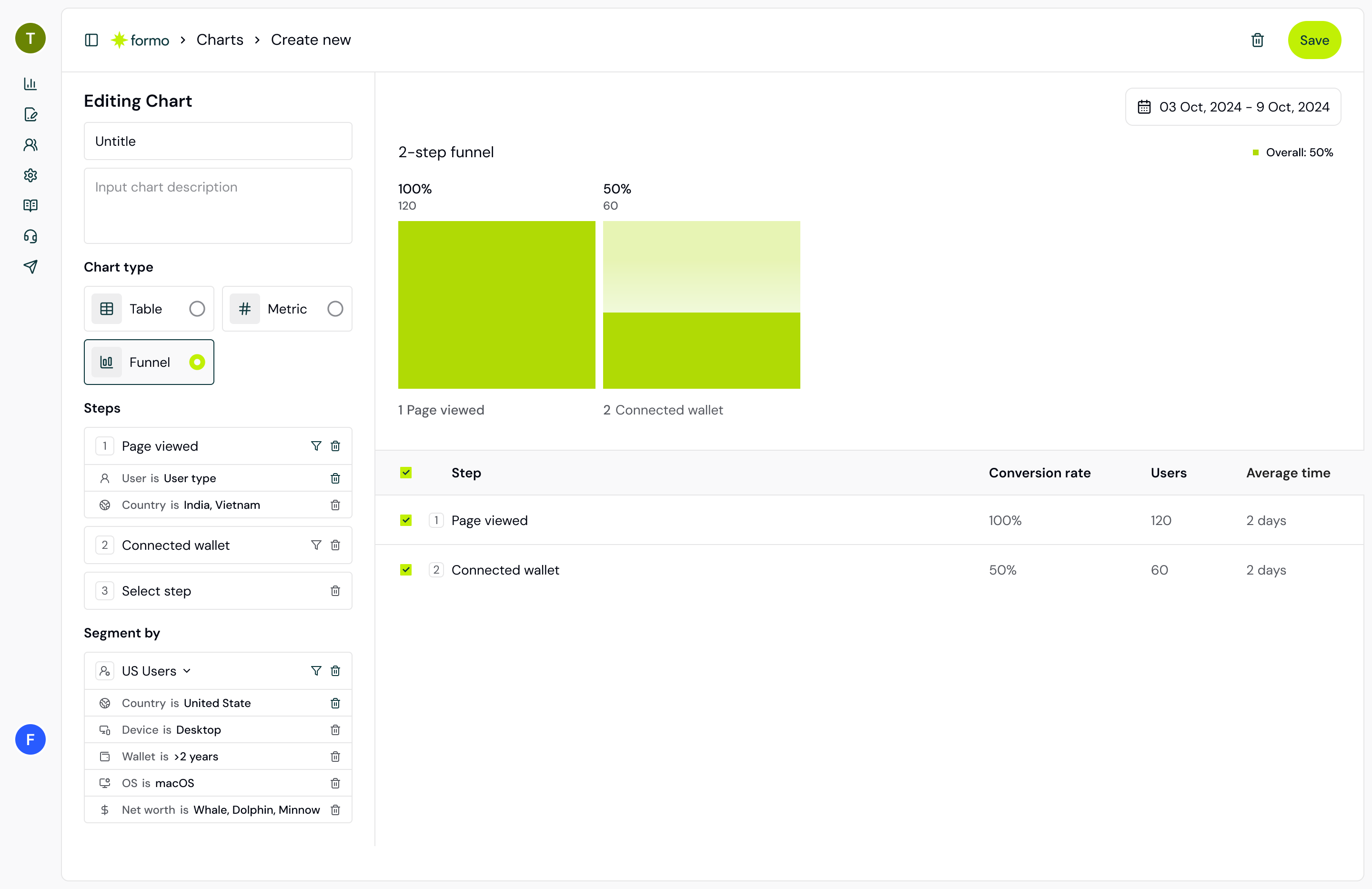
Create a new chart:- Select Funnel chart type
- Define your funnel steps:
- Step 1: Page view (using the
pageevent type) - Step 2: Connect wallet (using the
connectevent type) - Step 3: First Transaction
- Step 4: Repeat Transaction (optional)
- Step 1: Page view (using the
- Set your time range (30 days)
Part 4: Add Retention Chart
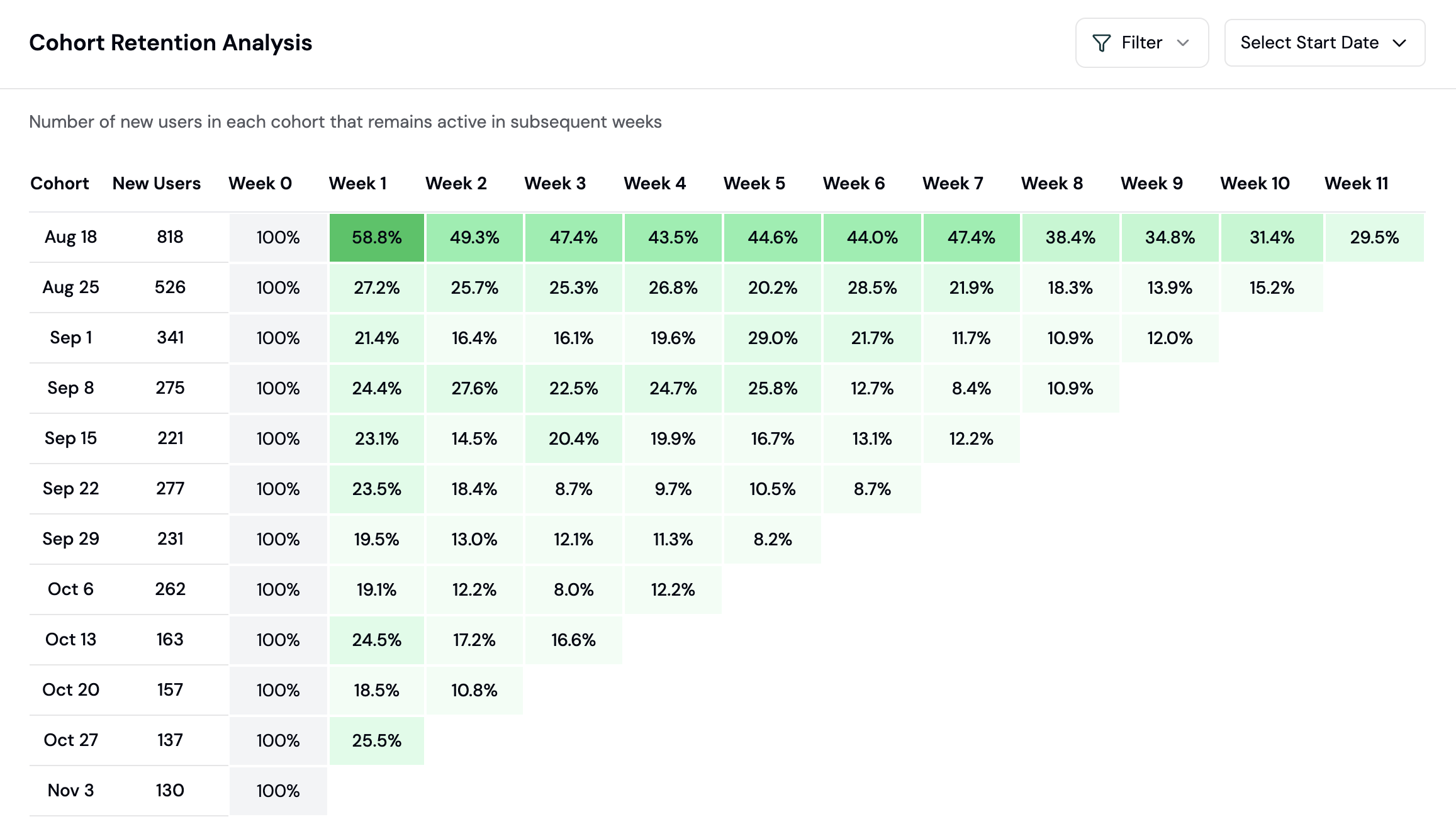
Create another chart:- Select Retention chart type
- Choose the retention event (e.g., wallet connect)
- Optionally add user filters to segment cohorts
Part 5: Add Flow Chart (Sankey)
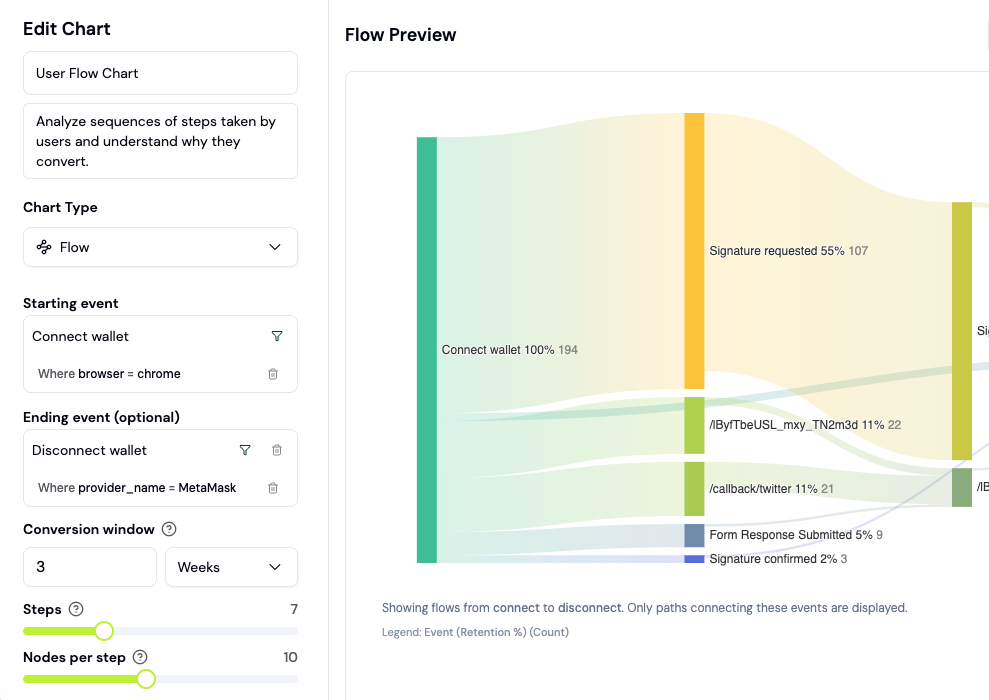
Create another chart:- Select Flow chart type (Sankey diagram)
- Configure: Page (or custom event) flows
- Limit to the top 5 to 10 paths for clarity
Part 6: Add Custom SQL Chart
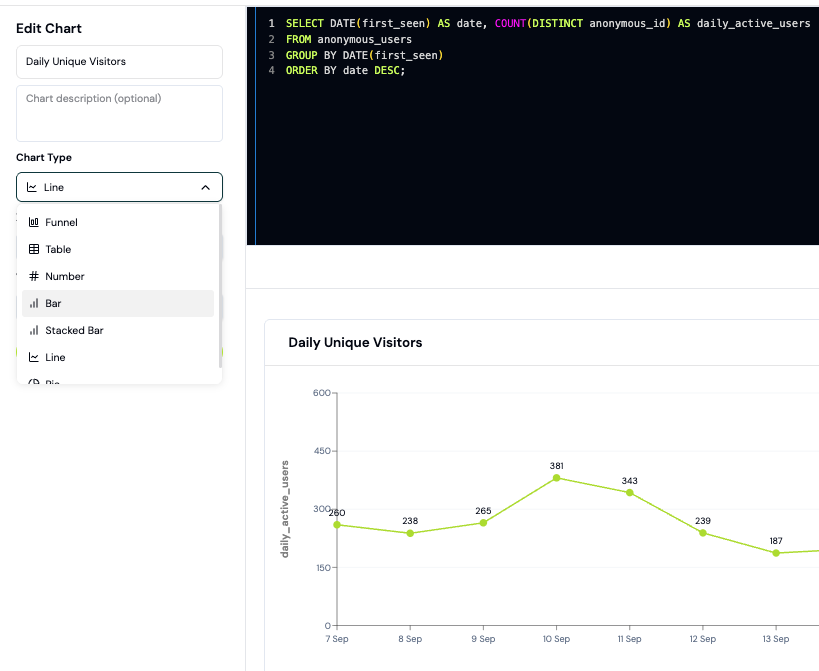
For advanced metrics (daily revenue, top wallets, gas spent), use a custom SQL chart:- Click Add Chart and write a SQL query
- Open the Explorer to build and test your query first
- Paste your tested SQL into the chart builder
- Select your chart visualization (Line, Bar, Pie)
Part 7: Share Your Dashboard
Click Share in the top right to generate a public link. Copy it and share with stakeholders; the shared view refreshes automatically every few minutes.Recommended Custom Charts
FAQ
What's the difference between a Board and a Chart?
What's the difference between a Board and a Chart?
A Chart is a single visualization (line, bar, funnel, etc.). A Board is a collection of charts arranged on one dashboard page. You can create multiple boards for different purposes (Protocol Health, Marketing Performance, Wallet Intelligence, etc.).
How far back can I view historical data?
How far back can I view historical data?
You can view data for as long as your project has been collecting it (usually from your first SDK install). Most protocols have 3-12 months of data. Older data can be queried via the Explorer.