

Part 1: Navigate to Project Settings > Contracts
In the Formo dashboard:- Go to your project settings
- Select Contracts.
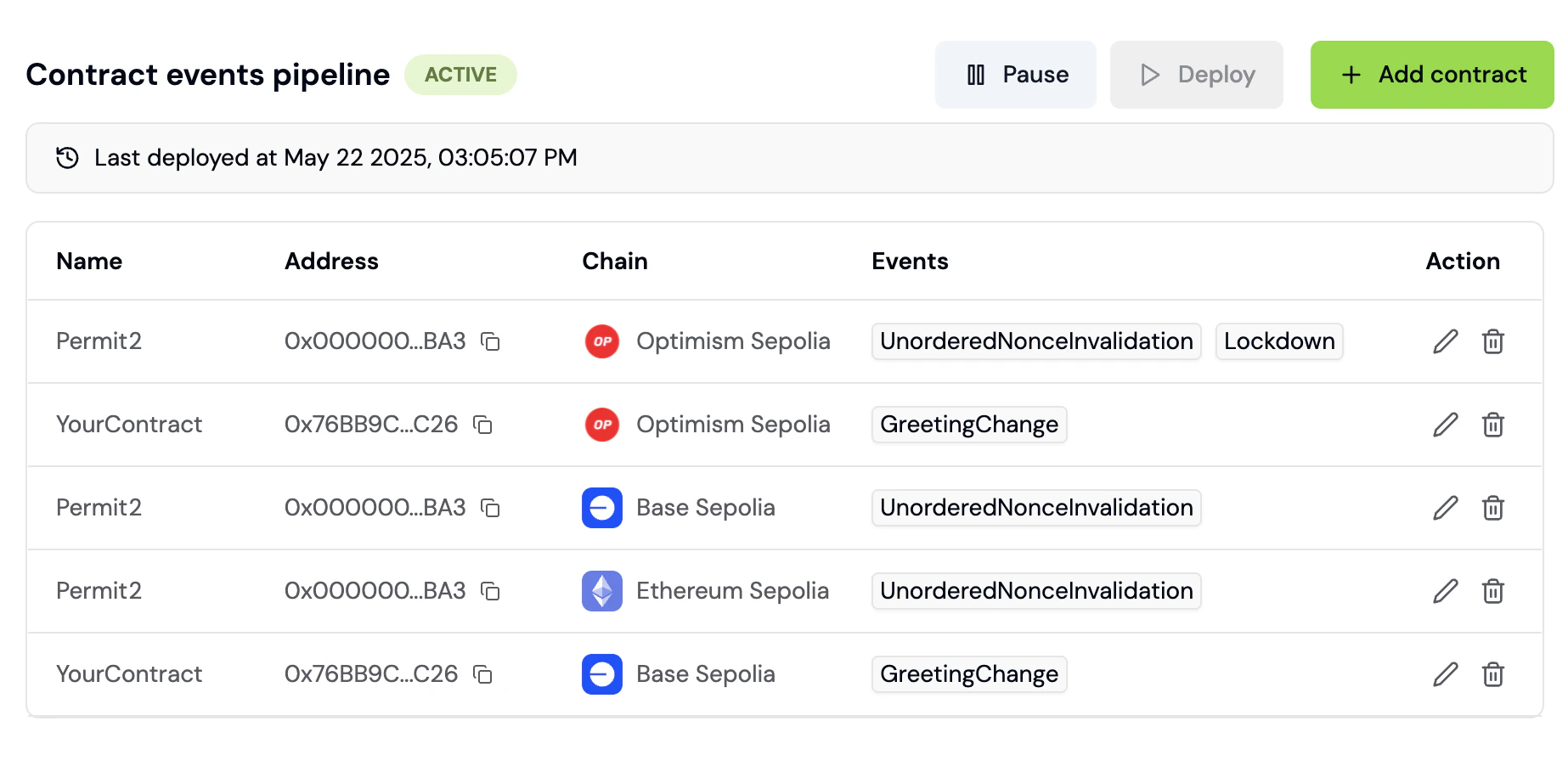
- You’ll see a list of contracts you’re already tracking and an Add Contract button.
Part 2: Add a Contract
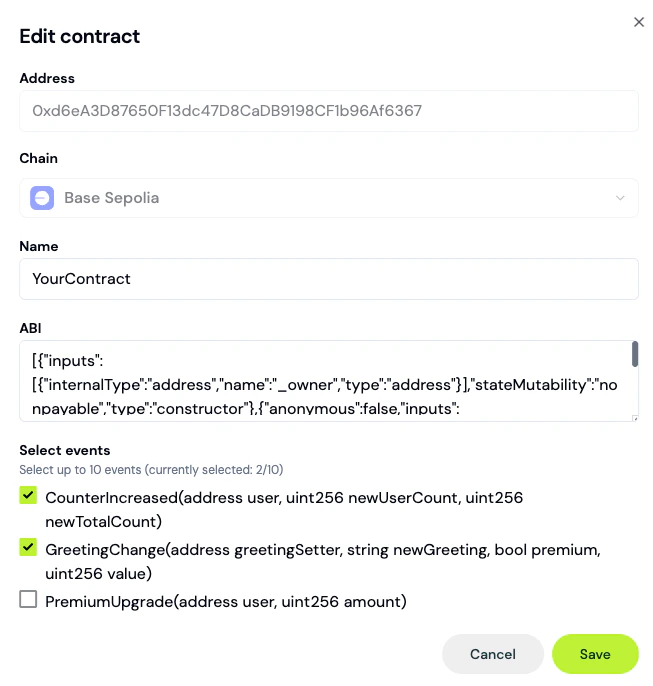
Click Add Contract. A modal opens.- Paste your contract address (e.g.,
0x6B175474E89094C44Da98b954EedeAC495271d0Ffor DAI on Ethereum) - Select the chain from the dropdown (Ethereum, Polygon, Arbitrum, Optimism, Base, etc.)
For proxy contracts, paste the implementation ABI, not the proxy ABI.
Part 3: Select Events to Track
The ABI reveals all events defined in the contract. Formo shows checkboxes for each. Common events to track:- Swap: When a user executes a trade (typically includes
amount_in,amount_out,user) - Transfer: When tokens move (includes
from,to,value) - Approval: When user approves a spender
- Deposit / Withdraw: For lending/staking protocols
- Mint / Burn: For token creation/destruction
Part 4: Deploy the Pipeline
Once events are selected, click Deploy. Formo provisions the pipeline in the background. Pipeline states progress as: Draft > Active (shown as Live in the UI). A pipeline can also land in Inactive, Paused, or Error if something needs your attention. This typically takes a few minutes. Monitor the status in the Project Settings > Contracts panel. Once Live, your smart contract events will start flowing into your Formo project.Part 5: See Contract Events in Activity Feed
Navigate to Activity in the sidebar. You’ll see a unified feed of offchain events (web page views, mobile events) and onchain events (smart contract events e.g. swaps, transfers). Scroll through to verify events are being captured. Filter for events by name like “Swap” or “Transfer” and properties like amount, token address, and timestamp. Each contract event is automatically linked to a wallet address and session, so you can associate it with the user who executed the transaction.Part 6: Use Contract Events as Funnel Steps
Now that contract events are flowing, use them as steps in funnels and other charts. Click Dashboards > Add Chart > Funnel. In the funnel builder, you’ll see a list of all of your events including events from the frontend (page views, wallet connects) and contract events (swaps, transfers) in the step dropdown. Example funnel:- “Wallet Connected” (frontend event with type
connect) - “Transaction” (frontend event with type
transaction) - “Swap” (contract event: Swap)
Part 7: Query Contract Events with SQL
For advanced analysis, use the Explorer (SQL editor). Navigate to Explorer in the sidebar. The schema browser on the left shows available tables:events, users, anonymous_users.
The events table includes contract events with columns like:
type: Event type (e.g.,decoded_logfor contract events,connectfor wallet connections)event: Specific event name like “Swap”, “Transfer”, etc. (populated fordecoded_logandtrackevents)address: User’s wallet addresstimestamp: When the event occurredproperties: Event-specific data stored as JSON string (includes contract address, amounts, tokens, etc.)
Essential Contract Event Queries
Query 1: Daily Swap VolumePart 8: Build Dashboard Charts from Contract Events
In Dashboards, create charts filtered to contract events. Example charts:- Line Chart: Daily swap volume over time
- Bar Chart: Top 5 tokens swapped
- Pie Chart: Swap size distribution (small, medium, large)
- Number Card: Total transactions, unique swappers, total volume
Part 9: Set Up Alerts for Contract Events
Navigate to Project Settings > Alerts. Create alerts for important contract events:- “Alert me when a high-net-worth wallet connects”
- “Alert me when a whale executes a swap”
- “Alert me when a specific contract event fires”
Pipeline Management
Check Pipeline Status
In Project Settings > Contracts, each contract shows its pipeline state:- Draft: Not yet deployed
- Live: Active and ingesting events
- Inactive: Deployed but not currently ingesting events
- Paused: Temporarily disabled
- Error: Pipeline failed (check logs)
Pause a Pipeline
If you need to stop tracking a contract, click Pause next to its name. Events stop being ingested. You can resume anytime.Redeploy After Changes
If you add new events or update your contract, deploy again to update the pipeline.FAQ
What blockchains does Formo support for contract events?
What blockchains does Formo support for contract events?
Formo supports Ethereum, Polygon, Arbitrum, Optimism, Base, BNB Chain, Avalanche, Linea, Scroll, zkSync, and more. Full list at Supported Chains.
How does Formo detect contract ABIs automatically?
How does Formo detect contract ABIs automatically?
Formo uses a single unified Etherscan API (selecting the chain via a chainId parameter) to fetch verified ABIs, with Sourcify as a fallback if the contract isn’t verified there. If your contract is verified on either source, the ABI is detected instantly. If not, paste the ABI manually.
Can I track events from multiple contracts in a single funnel?
Can I track events from multiple contracts in a single funnel?
Yes. For example, swap on Contract A, then bridge to Contract B. Both appear as funnel steps. Formo links them by wallet address and timestamp.
Do contract events count toward my event quota?
Do contract events count toward my event quota?
Yes. Each contract event counts as 1 event in your plan. For high-volume contracts (millions of events daily), consider filtering or segmenting.