

Part 1: Navigate to Dashboards and Create a Flow Chart
In the Formo dashboard:- Click Dashboards in the sidebar
- Click Add Chart in the top right.
- From the chart type selector, choose Flow.
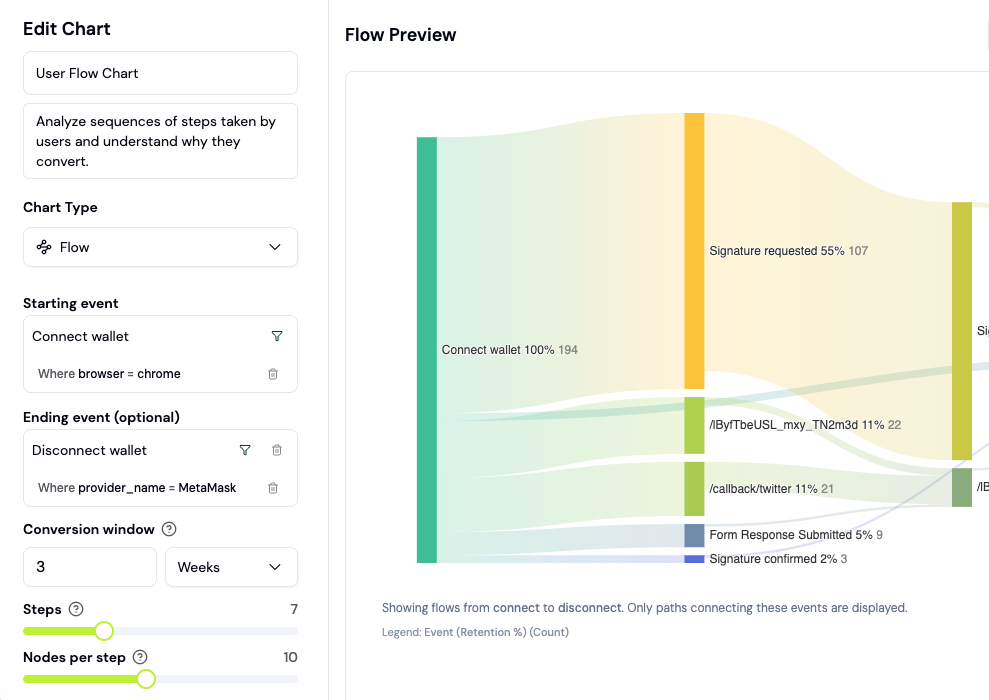
Part 2: Configure Your Starting Event
In the flow builder, select your starting event. Common starting points for onboarding analysis:- First page view (shows the complete user journey from landing)
- Connect wallet (shows post-connection paths)
Part 3: Read the Sankey Diagram
The diagram shows:- Nodes (circles): Pages or events in your flow (e.g., “Swap Page”, “Portfolio”)
- Paths (arrows): Lines connecting nodes, thickness represents user volume
- Drop-off (gray paths exiting right): Users who left without continuing
Part 4: Analyze Forward Paths
Forward paths answer: “What did users do after this step?” Example questions:- After connecting their wallet, how many users visited the portfolio page?
- Of those who visited the portfolio, how many completed a transaction?
- What’s the most common second step after landing?
Part 5: Filter by User Properties
Click Filter to narrow the flow to specific user segments. Filter options:- By Device (mobile vs desktop drop-off patterns)
- By Country (geographic patterns)
- By Browser
- By OS
- By Referrer (organic vs paid, specific campaigns)
- By Referrer URL
Part 6: Identify Bottlenecks and Optimization Opportunities
Look for:- Hard Stops: Nodes where 50%+ users exit (red flag for UX friction)
- Unexpected Paths: Routes most users don’t take (may indicate confusion)
- Long Paths: Users going 5+ steps before conversion (simplify)
- Device Disparity: Different conversion rates on mobile vs desktop
Part 7: Save Flow Chart to Your Dashboard
Once your flow analysis is complete, click Save to Dashboard. Choose an existing dashboard or create a new one. Name the chart clearly: “New User Onboarding Flow” or “Post-Swap Flows”. Saved flows update in real time, so you can track onboarding improvements over time as you ship fixes.Real-World Analysis Walkthrough
Imagine your new user onboarding flow shows:- 100 users land on your app (starting event: first page view)
- 80 connect a wallet (80% conversion)
- 60 visit swap page (75% of wallets)
- 20 complete first swap (33% of swap visitors)
- Wallet connect: Strong (80% is good)
- Swap page visit: Good (75%)
- Swap completion: Weak (33%)
Measuring Onboarding Success
Create onboarding segments
Use segments to track users at different onboarding stages: Segment 1: Landed but didn’t connect- Visited page in last 7 days
- Did NOT connect wallet
- Connected wallet in last 7 days
- Did NOT complete transaction
- Completed transaction in last 7 days
- Is a New User (lifecycle)
Measure with the onboarding rate formula
The “aha moment” drives retention
Compare retention for different first-session actions:
Insight: Driving users to complete a transaction dramatically improves retention.
Query onboarding rate with SQL
Common onboarding improvements
A/B test onboarding changes
When you ship changes to improve onboarding:- Note the date of the change
- Compare funnel metrics before and after using date filters on your dashboard
- Check if retention improved for post-change cohorts using a Retention chart
FAQ
What's the difference between Flows and Funnels?
What's the difference between Flows and Funnels?
Flows show all possible routes users take, including dropoffs. Funnels measure conversion through a specific sequence of steps. Use flows to discover paths, funnels to measure specific conversions.
Can I set a time window for flows (e.g., only first 24 hours)?
Can I set a time window for flows (e.g., only first 24 hours)?
Yes. Set a Conversion window (value and unit, e.g. 24 hours) in the flow’s chart settings to limit how long after the starting event later steps can occur.
Can I export flow data as a CSV?
Can I export flow data as a CSV?
Yes, but not the node and path structure itself. Click a node or path to select the users behind it, then export that user list as a CSV. There’s no JSON export option. Useful for reporting to stakeholders or further analysis in Excel.