> ## Documentation Index
> Fetch the complete documentation index at: https://docs.formo.so/llms.txt
> Use this file to discover all available pages before exploring further.
# MCP OAuth
> Connect OAuth-capable MCP clients to Formo.
## Overview
Formo supports OAuth for remote MCP clients that can discover and complete an OAuth authorization flow.
 The MCP endpoint does not change:
```text theme={null}
https://api.formo.so/v0/mcp/
```
Always configure the MCP endpoint as `/v0/mcp/` with the trailing slash. Do not use `https://api.formo.so/` as the MCP server URL.
MCP requires a **Scale or Enterprise** plan. The plan is enforced during the OAuth flow: Free and Growth workspaces cannot complete authorization and receive a `403` error. [Upgrade your workspace](https://app.formo.so) to enable MCP access.
## When to use OAuth
Use OAuth when the MCP client manages authentication for users. The setup examples below cover common hosted web clients.
## Setup
Select your web client below to configure Formo with OAuth authentication.
1. Open **Customize** → **Connectors**
2. Add a custom connector
3. Enter the connector details:
**Name**
```text theme={null}
Formo
```
**Server URL**
```text theme={null}
https://api.formo.so/v0/mcp/
```
The MCP endpoint does not change:
```text theme={null}
https://api.formo.so/v0/mcp/
```
Always configure the MCP endpoint as `/v0/mcp/` with the trailing slash. Do not use `https://api.formo.so/` as the MCP server URL.
MCP requires a **Scale or Enterprise** plan. The plan is enforced during the OAuth flow: Free and Growth workspaces cannot complete authorization and receive a `403` error. [Upgrade your workspace](https://app.formo.so) to enable MCP access.
## When to use OAuth
Use OAuth when the MCP client manages authentication for users. The setup examples below cover common hosted web clients.
## Setup
Select your web client below to configure Formo with OAuth authentication.
1. Open **Customize** → **Connectors**
2. Add a custom connector
3. Enter the connector details:
**Name**
```text theme={null}
Formo
```
**Server URL**
```text theme={null}
https://api.formo.so/v0/mcp/
```
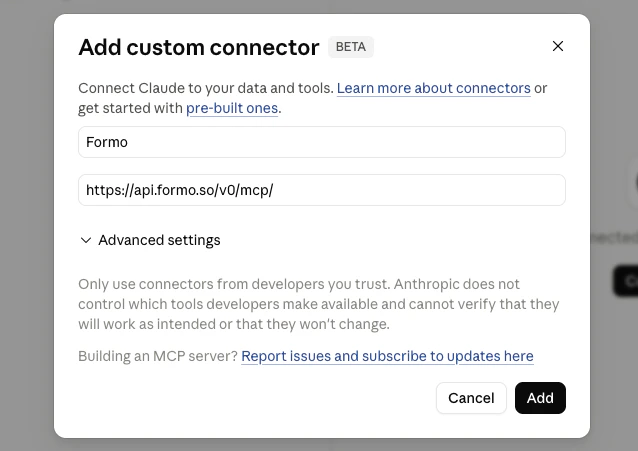 4. Click **Add**
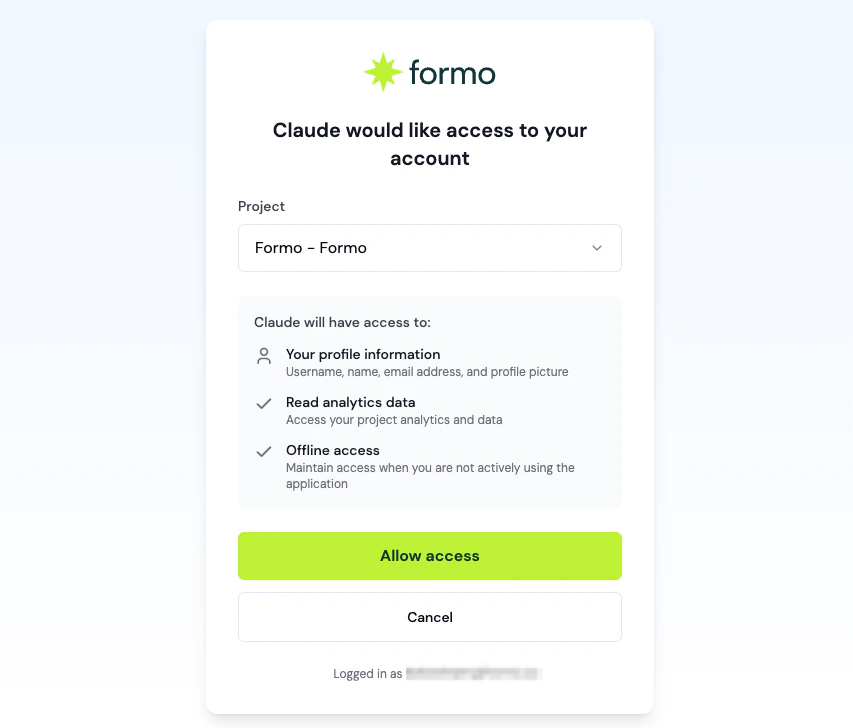
5. On the Formo confirmation page, select the project Claude.ai should access
6. Click **Allow access**
7. Return to Claude.ai and confirm Formo appears with the available tools
4. Click **Add**
5. On the Formo confirmation page, select the project Claude.ai should access
6. Click **Allow access**
7. Return to Claude.ai and confirm Formo appears with the available tools
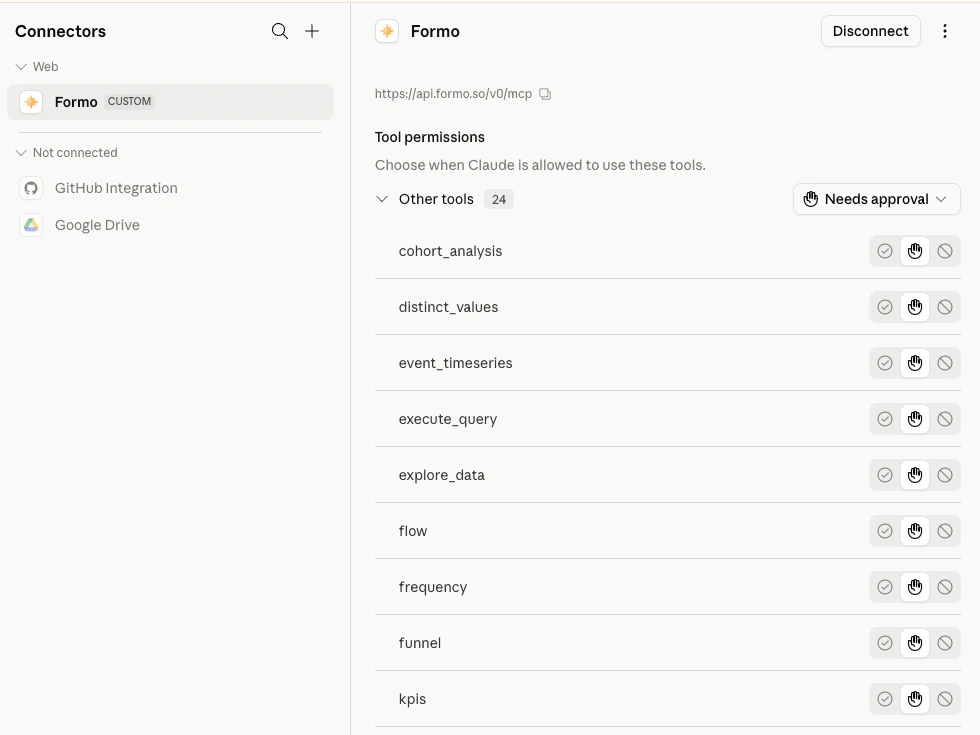 Claude.ai stores and refreshes the OAuth connection for the signed-in user. In managed workspaces, an owner or admin may need to add the remote MCP server before members can connect it individually.
1. Open ChatGPT settings
2. Go to **Apps**
3. Click **Advanced settings**
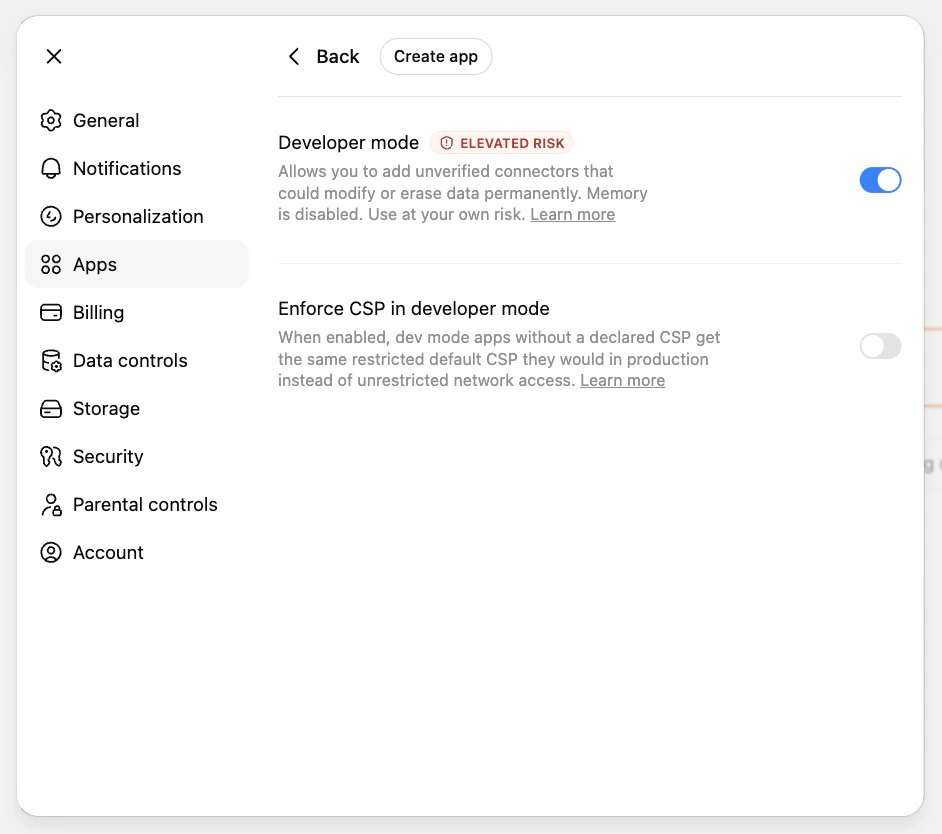
4. Enable **Developer mode**
Claude.ai stores and refreshes the OAuth connection for the signed-in user. In managed workspaces, an owner or admin may need to add the remote MCP server before members can connect it individually.
1. Open ChatGPT settings
2. Go to **Apps**
3. Click **Advanced settings**
4. Enable **Developer mode**
 5. Go back to Apps
6. Click **Create app**
7. Enter the app details:
**Name**
```text theme={null}
Formo
```
**MCP server URL**
```text theme={null}
https://api.formo.so/v0/mcp/
```
* **Description:** optional
* **Authentication:** OAuth
5. Go back to Apps
6. Click **Create app**
7. Enter the app details:
**Name**
```text theme={null}
Formo
```
**MCP server URL**
```text theme={null}
https://api.formo.so/v0/mcp/
```
* **Description:** optional
* **Authentication:** OAuth
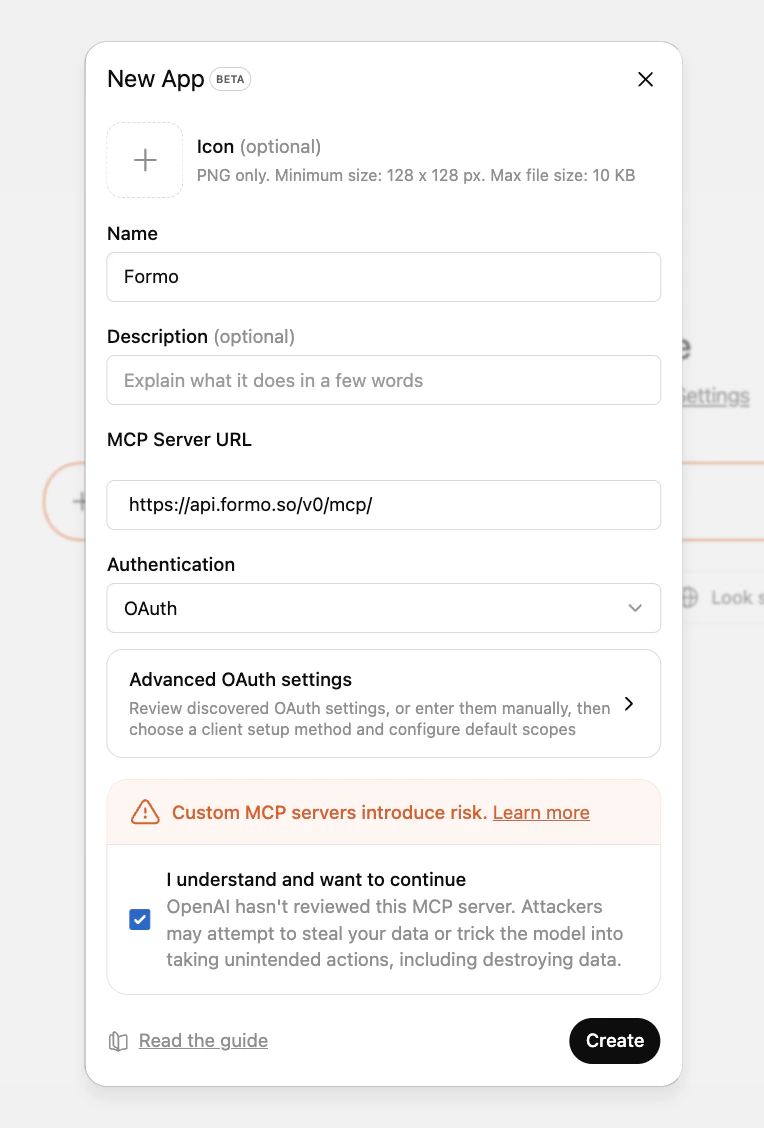 8. Click **Create**
9. Sign in to Formo, select a project, and approve access
10. Start asking ChatGPT questions about your Formo analytics
ChatGPT Developer mode is a beta feature. ChatGPT apps created in Developer mode also cannot use memory.
Formo can be configured as a data-only MCP app; no extra app UI is required to query analytics.
1. Open your MCP client's connector or app settings
2. Add a remote MCP server
3. Enter the Formo MCP server URL:
```text theme={null}
https://api.formo.so/v0/mcp/
```
4. Choose OAuth if the client asks for an authentication method
5. Save or connect the server
6. Sign in to Formo, select a project, and approve access
If the client asks for scopes, request only `mcp:read` and `offline_access`.
Try prompts you can ask once Formo is connected.
## Scopes
Formo MCP OAuth supports only these scopes:
| Scope | Description |
| :--------------- | :------------------------------------------------------------------------------- |
| `mcp:read` | Read-only MCP access to the selected Formo project |
| `offline_access` | Allows the MCP client to refresh access without asking the user to sign in again |
Formo does not expose `mcp:tools` or `mcp:resources` scopes. Tool permission decisions are handled by the MCP client.
OAuth access is bound to the project selected on the Formo consent page. The MCP server validates that the user still has access to that project before serving requests.
## Advanced details
Most OAuth-capable MCP clients discover Formo's OAuth configuration automatically from the MCP server URL:
```text theme={null}
https://api.formo.so/v0/mcp/
```
Unauthenticated requests return a `401` with a `WWW-Authenticate` challenge that points clients to Formo's protected resource metadata. Access tokens expire after 1 hour; clients that request `offline_access` can refresh access without asking the user to sign in again.
| Metadata | URL |
| :---------------------------- | :------------------------------------------------------------------------- |
| Protected resource metadata | `https://api.formo.so/.well-known/oauth-protected-resource/v0/mcp` |
| Authorization server metadata | `https://api.formo.so/v0/mcp/oauth/.well-known/oauth-authorization-server` |
| OpenID configuration alias | `https://api.formo.so/v0/mcp/oauth/.well-known/openid-configuration` |
The `openid-configuration` path is an alias that returns the same OAuth authorization-server metadata for clients that look there. Formo MCP is OAuth 2.0 only and does not implement full OpenID Connect.
## API key compatibility
OAuth and API key authentication both use the same MCP endpoint:
```text theme={null}
https://api.formo.so/v0/mcp/
```
The backend accepts either:
* `Authorization: Bearer `
* `Authorization: Bearer `
Workspace API keys must include the MCP scope. Existing Claude Desktop, Cursor, Claude Code, Windsurf, VS Code, Codex, and `mcp-remote` configurations do not need to change. For setup instructions, see [MCP API Key](/mcp/api-key).
Use a Workspace API Key when your MCP client supports custom request headers and you want to manage credentials yourself, such as local developer tools, CLI bridges, and editor integrations.
## Troubleshooting
**`403 MCP access requires a Scale or Enterprise plan`:** The signed-in workspace is on a Free or Growth plan. MCP authorization is gated server-side, so the OAuth flow will not complete. [Upgrade the workspace](https://app.formo.so) to a Scale or Enterprise plan, then reconnect.
**Client does not start OAuth:** Confirm the MCP server URL is exactly `https://api.formo.so/v0/mcp/` and includes the trailing slash.
**Invalid scope:** Request only `mcp:read` and, when refresh is needed, `offline_access`.
**Consent page asks you to sign in again:** Sign in to Formo and you will be returned to the same OAuth authorization flow.
**No projects are available:** The signed-in Formo account must belong to at least one team with a project.
**Project access denied after connecting:** Reconnect and choose a project that your Formo user can still access.
**API key stopped working:** OAuth does not replace API keys. Check that the key has MCP scope, has not been revoked, and is sent as `Authorization: Bearer `.
8. Click **Create**
9. Sign in to Formo, select a project, and approve access
10. Start asking ChatGPT questions about your Formo analytics
ChatGPT Developer mode is a beta feature. ChatGPT apps created in Developer mode also cannot use memory.
Formo can be configured as a data-only MCP app; no extra app UI is required to query analytics.
1. Open your MCP client's connector or app settings
2. Add a remote MCP server
3. Enter the Formo MCP server URL:
```text theme={null}
https://api.formo.so/v0/mcp/
```
4. Choose OAuth if the client asks for an authentication method
5. Save or connect the server
6. Sign in to Formo, select a project, and approve access
If the client asks for scopes, request only `mcp:read` and `offline_access`.
Try prompts you can ask once Formo is connected.
## Scopes
Formo MCP OAuth supports only these scopes:
| Scope | Description |
| :--------------- | :------------------------------------------------------------------------------- |
| `mcp:read` | Read-only MCP access to the selected Formo project |
| `offline_access` | Allows the MCP client to refresh access without asking the user to sign in again |
Formo does not expose `mcp:tools` or `mcp:resources` scopes. Tool permission decisions are handled by the MCP client.
OAuth access is bound to the project selected on the Formo consent page. The MCP server validates that the user still has access to that project before serving requests.
## Advanced details
Most OAuth-capable MCP clients discover Formo's OAuth configuration automatically from the MCP server URL:
```text theme={null}
https://api.formo.so/v0/mcp/
```
Unauthenticated requests return a `401` with a `WWW-Authenticate` challenge that points clients to Formo's protected resource metadata. Access tokens expire after 1 hour; clients that request `offline_access` can refresh access without asking the user to sign in again.
| Metadata | URL |
| :---------------------------- | :------------------------------------------------------------------------- |
| Protected resource metadata | `https://api.formo.so/.well-known/oauth-protected-resource/v0/mcp` |
| Authorization server metadata | `https://api.formo.so/v0/mcp/oauth/.well-known/oauth-authorization-server` |
| OpenID configuration alias | `https://api.formo.so/v0/mcp/oauth/.well-known/openid-configuration` |
The `openid-configuration` path is an alias that returns the same OAuth authorization-server metadata for clients that look there. Formo MCP is OAuth 2.0 only and does not implement full OpenID Connect.
## API key compatibility
OAuth and API key authentication both use the same MCP endpoint:
```text theme={null}
https://api.formo.so/v0/mcp/
```
The backend accepts either:
* `Authorization: Bearer `
* `Authorization: Bearer `
Workspace API keys must include the MCP scope. Existing Claude Desktop, Cursor, Claude Code, Windsurf, VS Code, Codex, and `mcp-remote` configurations do not need to change. For setup instructions, see [MCP API Key](/mcp/api-key).
Use a Workspace API Key when your MCP client supports custom request headers and you want to manage credentials yourself, such as local developer tools, CLI bridges, and editor integrations.
## Troubleshooting
**`403 MCP access requires a Scale or Enterprise plan`:** The signed-in workspace is on a Free or Growth plan. MCP authorization is gated server-side, so the OAuth flow will not complete. [Upgrade the workspace](https://app.formo.so) to a Scale or Enterprise plan, then reconnect.
**Client does not start OAuth:** Confirm the MCP server URL is exactly `https://api.formo.so/v0/mcp/` and includes the trailing slash.
**Invalid scope:** Request only `mcp:read` and, when refresh is needed, `offline_access`.
**Consent page asks you to sign in again:** Sign in to Formo and you will be returned to the same OAuth authorization flow.
**No projects are available:** The signed-in Formo account must belong to at least one team with a project.
**Project access denied after connecting:** Reconnect and choose a project that your Formo user can still access.
**API key stopped working:** OAuth does not replace API keys. Check that the key has MCP scope, has not been revoked, and is sent as `Authorization: Bearer `.