> ## Documentation Index
> Fetch the complete documentation index at: https://docs.formo.so/llms.txt
> Use this file to discover all available pages before exploring further.
# How to Build a Custom Dashboard
> Create a custom dashboard with charts for users, transactions, revenue, retention, and acquisition channels using Formo's dashboard builder.
A dashboard is your protocol's cockpit. It's where you see everything that matters at a glance: user growth, transaction volume, revenue trends, and whether your acquisition channels are working. Let's build one.
## Part 1: Create Your Dashboard Board
Navigate to **Dashboards** in the sidebar. Click **Add board**.
Name your board (e.g., "Growth Metrics" or "Protocol Health"). This is your custom dashboard page where all charts will live.
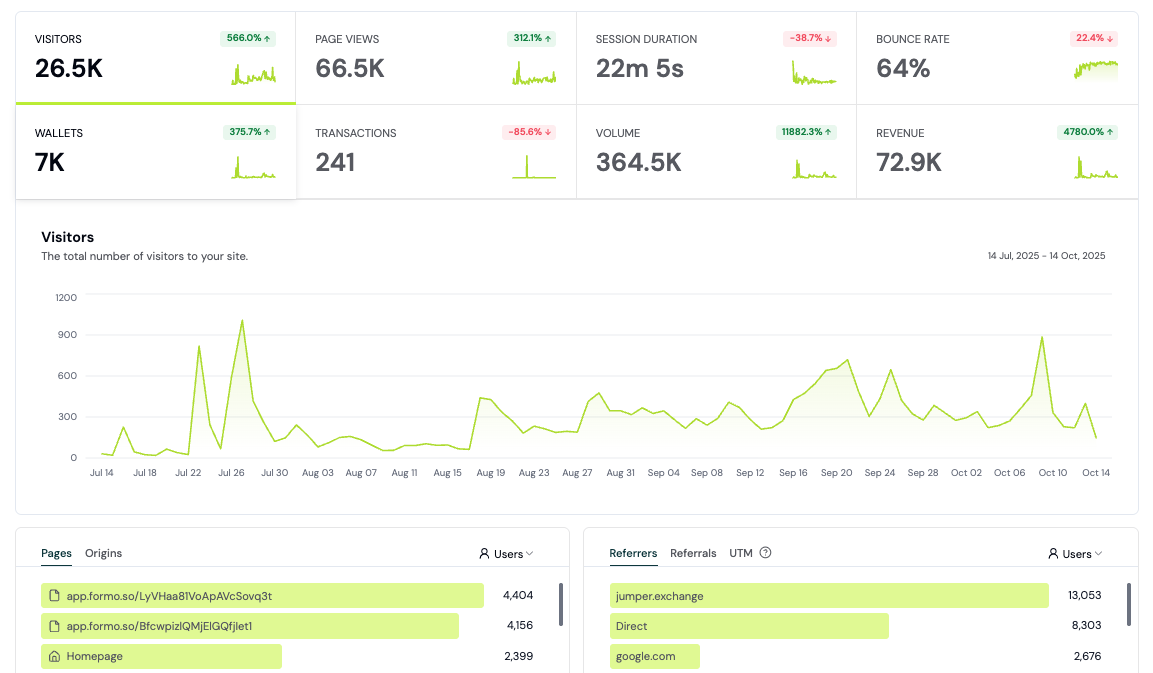 ## Part 2: Add Key Metrics Chart
Click **Add Chart** on your board. In the chart builder:
1. Select **Line** chart type (or Bar for comparison)
2. Write a SQL query for your metric (e.g., daily unique wallets, transaction count)
3. Set your X-Axis and Y-Axis from the query results
4. Set your time range (last 30 days is standard)
This chart shows your protocol's heartbeat. Are users growing? Are transaction volumes stable or declining?
**What to track:**
* Unique Visitors (DAU/WAU/MAU)
* Wallet Connects per day
* Transaction count per day
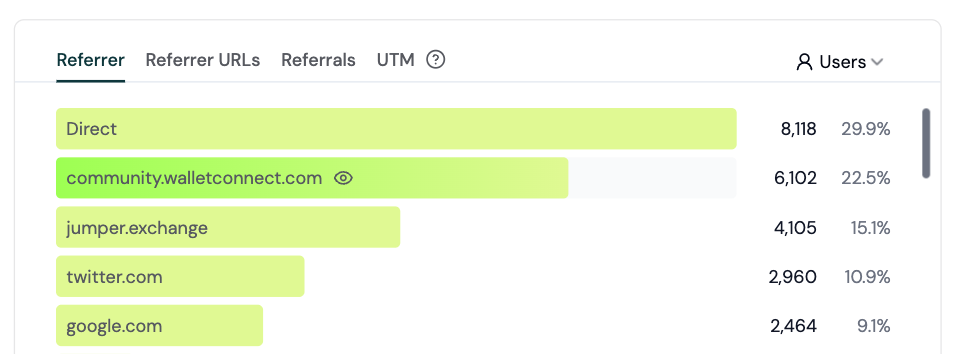
## Part 3: Add Traffic Sources Chart
Create another chart:
1. Select **Bar Chart**
2. Metric: Unique Visitors or Transactions
3. Dimension: Referrer (or UTM Source if tracking campaigns)
4. Sort by value, descending
This shows you where your users come from. Which channels drive the most traffic? Which convert best?
## Part 2: Add Key Metrics Chart
Click **Add Chart** on your board. In the chart builder:
1. Select **Line** chart type (or Bar for comparison)
2. Write a SQL query for your metric (e.g., daily unique wallets, transaction count)
3. Set your X-Axis and Y-Axis from the query results
4. Set your time range (last 30 days is standard)
This chart shows your protocol's heartbeat. Are users growing? Are transaction volumes stable or declining?
**What to track:**
* Unique Visitors (DAU/WAU/MAU)
* Wallet Connects per day
* Transaction count per day
## Part 3: Add Traffic Sources Chart
Create another chart:
1. Select **Bar Chart**
2. Metric: Unique Visitors or Transactions
3. Dimension: Referrer (or UTM Source if tracking campaigns)
4. Sort by value, descending
This shows you where your users come from. Which channels drive the most traffic? Which convert best?
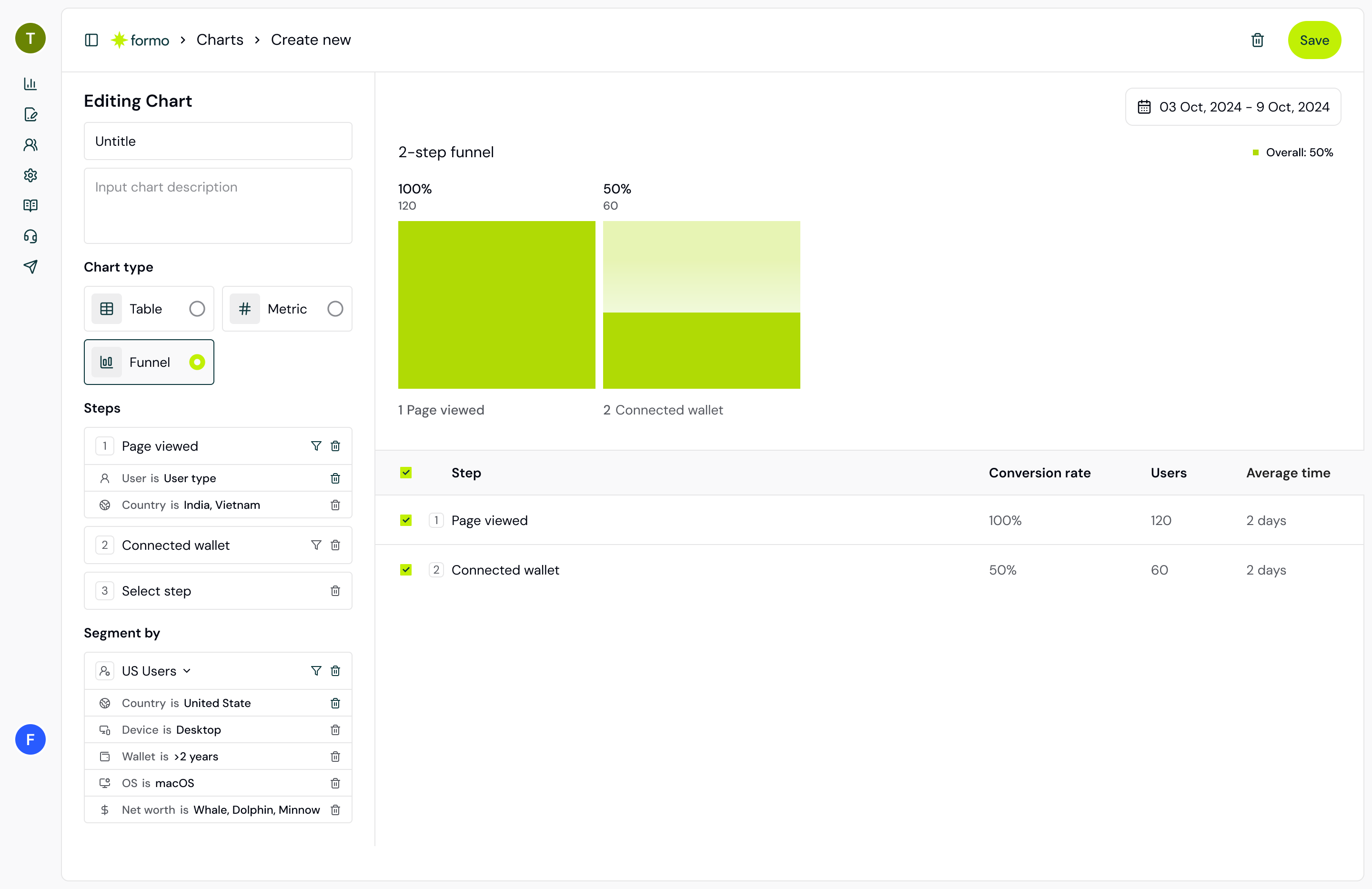
 ## Part 4: Add Funnel Chart
Create a new chart:
1. Select **Funnel** chart type
2. Define your funnel steps:
* Step 1: Page view (using the `page` event type)
* Step 2: Connect wallet (using the `connect` event type)
* Step 3: First Transaction
* Step 4: Repeat Transaction (optional)
3. Set your time range (30 days)
This chart answers the hardest question: how many users actually convert? Where do people drop off?
## Part 4: Add Funnel Chart
Create a new chart:
1. Select **Funnel** chart type
2. Define your funnel steps:
* Step 1: Page view (using the `page` event type)
* Step 2: Connect wallet (using the `connect` event type)
* Step 3: First Transaction
* Step 4: Repeat Transaction (optional)
3. Set your time range (30 days)
This chart answers the hardest question: how many users actually convert? Where do people drop off?
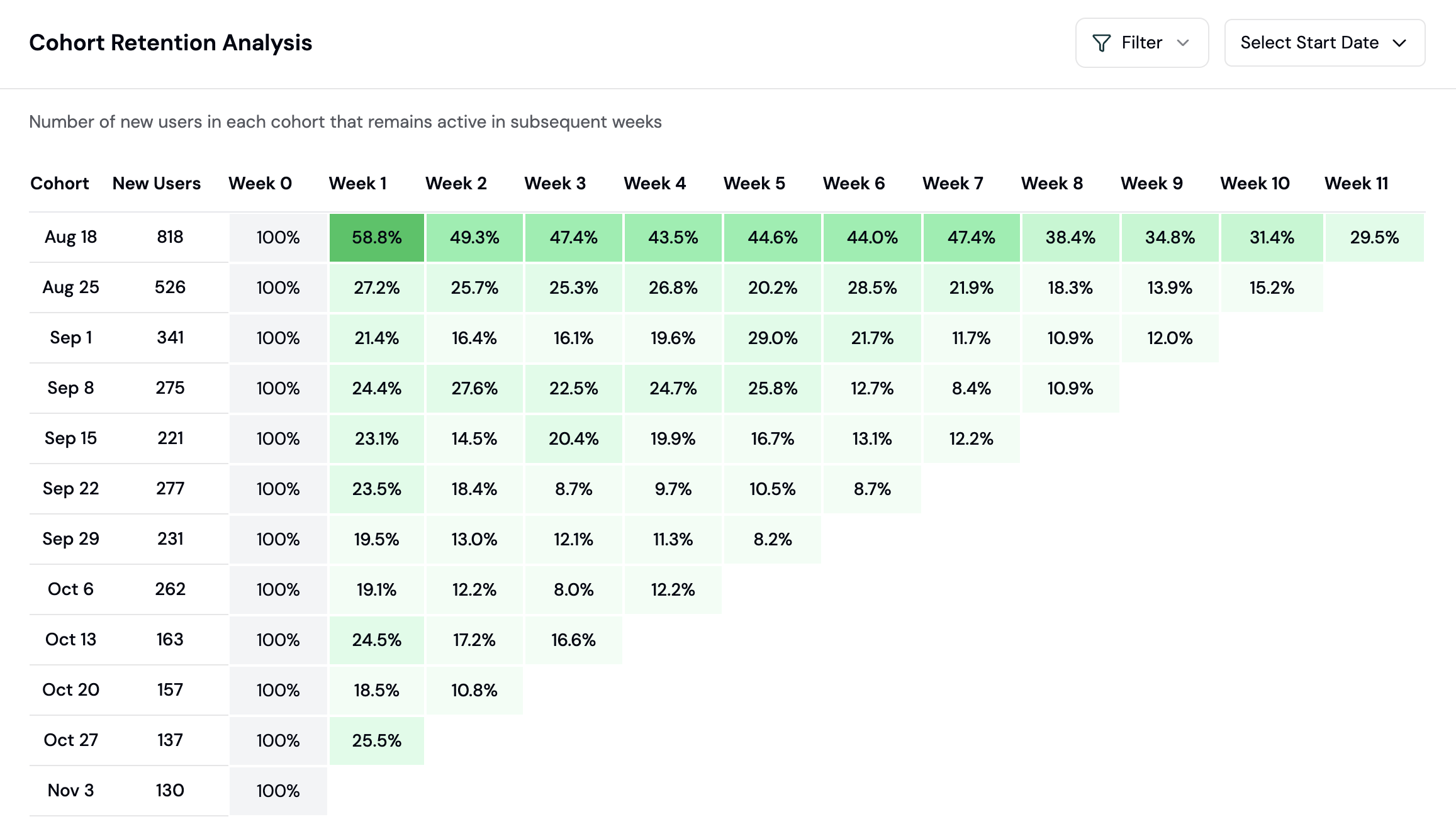
 ## Part 5: Add Retention Chart
Create another chart:
1. Select **Retention** chart type
2. Choose the retention event (e.g., wallet connect)
3. Optionally add user filters to segment cohorts
Retention is the metric most protocols ignore until they need it. This chart shows whether users stick around or ghost after their first transaction.
## Part 5: Add Retention Chart
Create another chart:
1. Select **Retention** chart type
2. Choose the retention event (e.g., wallet connect)
3. Optionally add user filters to segment cohorts
Retention is the metric most protocols ignore until they need it. This chart shows whether users stick around or ghost after their first transaction.
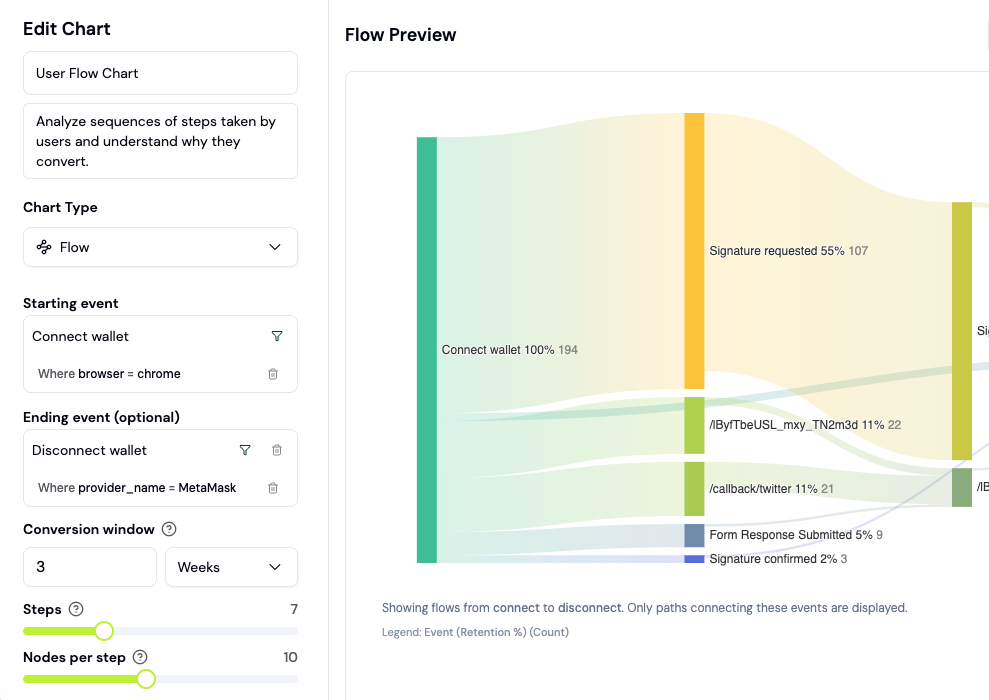
 ## Part 6: Add Flow Chart (Sankey)
Create another chart:
1. Select **Flow** chart type (Sankey diagram)
2. Configure: Page (or custom event) flows
3. Limit to top 5-10 paths for clarity
This shows the most common user journeys through your protocol. Do users go straight to swap? Do they explore first? Which paths lead to transactions?
## Part 6: Add Flow Chart (Sankey)
Create another chart:
1. Select **Flow** chart type (Sankey diagram)
2. Configure: Page (or custom event) flows
3. Limit to top 5-10 paths for clarity
This shows the most common user journeys through your protocol. Do users go straight to swap? Do they explore first? Which paths lead to transactions?
 ## Part 7: Add Custom SQL Chart
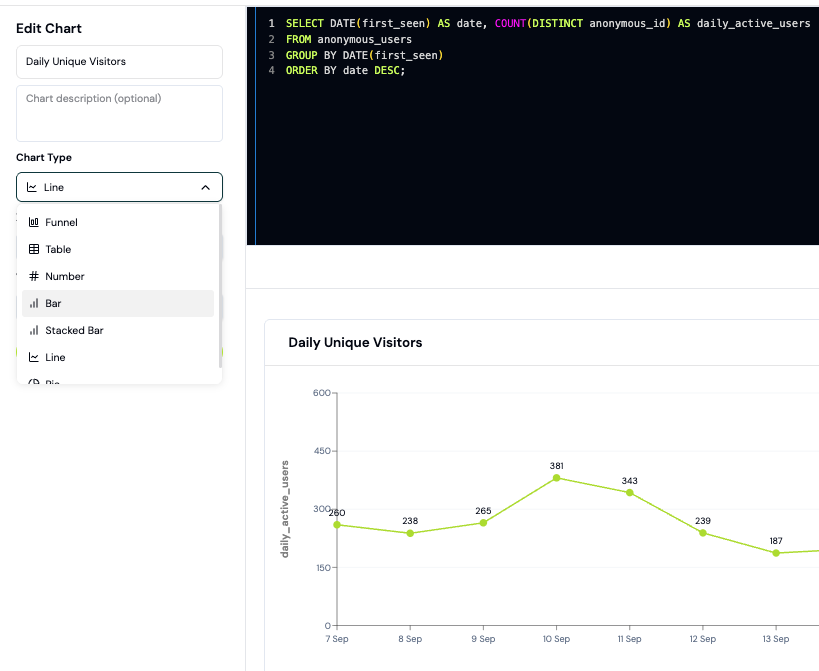
For advanced metrics (daily revenue, top wallets, gas spent), use a custom SQL chart:
1. Click **Add Chart** and write a SQL query
2. Open the [Explorer](/guides/sql-explorer) to build and test your query first
3. Paste your tested SQL into the chart builder
4. Select your chart visualization (Line, Bar, Pie)
Example: Daily revenue by tracking transaction values from contract events.
## Part 7: Add Custom SQL Chart
For advanced metrics (daily revenue, top wallets, gas spent), use a custom SQL chart:
1. Click **Add Chart** and write a SQL query
2. Open the [Explorer](/guides/sql-explorer) to build and test your query first
3. Paste your tested SQL into the chart builder
4. Select your chart visualization (Line, Bar, Pie)
Example: Daily revenue by tracking transaction values from contract events.
 ## Part 8: Share Your Dashboard
Click **Share** in the top right to generate a public link. Copy it and share with stakeholders - all data updates in real time.
## Recommended Custom Charts
| Chart | Metric | Why It Matters |
| -------------------------- | --------------------------------- | ------------------------------------------------- |
| **Key Metrics Line Chart** | DAU, Transactions | Your protocol's growth trajectory |
| **Funnel Chart** | Page view > Connect > Transaction | Where users drop off and your biggest opportunity |
| **Retention Chart** | D7, D30 cohort retention | Whether users actually come back (stickiness) |
| **Traffic Sources** | Referrer breakdown | Best acquisition channels to double down on |
| **User Path (Sankey)** | Common flows | How real users navigate your protocol |
## Best Practices
**Compare channels.** A channel with lower volume but higher conversion rate is worth more than a high-volume channel with poor conversion. Funnel by UTM source.
**Set up alerts.** Create alerts in Project Settings to get notified when high-value users connect or key events happen. See [Alerts guide](/features/product-analytics/alerts) for details.
## Next Steps
* [Create a conversion funnel](/guides/funnels) to dig deeper into user acquisition
* [Track retention cohorts](/guides/retention) by wallet label or geography
* [Use Ask Formo](/guides/ask-ai) to surface insights from your dashboard data
* [Set up contract events](/guides/contract-events) to track onchain activity beyond SDK events
* [View your Insights page](/features/product-analytics/ai) for AI-generated growth opportunities
## FAQ
A Chart is a single visualization (line, bar, funnel, etc.). A Board is a collection of charts arranged on one dashboard page. You can create multiple boards for different purposes (Protocol Health, Marketing Performance, Wallet Intelligence, etc.).
You can view data for as long as your project has been collecting it (usually from your first SDK install). Most protocols have 3-12 months of data. Older data can be queried via the Explorer.
## Part 8: Share Your Dashboard
Click **Share** in the top right to generate a public link. Copy it and share with stakeholders - all data updates in real time.
## Recommended Custom Charts
| Chart | Metric | Why It Matters |
| -------------------------- | --------------------------------- | ------------------------------------------------- |
| **Key Metrics Line Chart** | DAU, Transactions | Your protocol's growth trajectory |
| **Funnel Chart** | Page view > Connect > Transaction | Where users drop off and your biggest opportunity |
| **Retention Chart** | D7, D30 cohort retention | Whether users actually come back (stickiness) |
| **Traffic Sources** | Referrer breakdown | Best acquisition channels to double down on |
| **User Path (Sankey)** | Common flows | How real users navigate your protocol |
## Best Practices
**Compare channels.** A channel with lower volume but higher conversion rate is worth more than a high-volume channel with poor conversion. Funnel by UTM source.
**Set up alerts.** Create alerts in Project Settings to get notified when high-value users connect or key events happen. See [Alerts guide](/features/product-analytics/alerts) for details.
## Next Steps
* [Create a conversion funnel](/guides/funnels) to dig deeper into user acquisition
* [Track retention cohorts](/guides/retention) by wallet label or geography
* [Use Ask Formo](/guides/ask-ai) to surface insights from your dashboard data
* [Set up contract events](/guides/contract-events) to track onchain activity beyond SDK events
* [View your Insights page](/features/product-analytics/ai) for AI-generated growth opportunities
## FAQ
A Chart is a single visualization (line, bar, funnel, etc.). A Board is a collection of charts arranged on one dashboard page. You can create multiple boards for different purposes (Protocol Health, Marketing Performance, Wallet Intelligence, etc.).
You can view data for as long as your project has been collecting it (usually from your first SDK install). Most protocols have 3-12 months of data. Older data can be queried via the Explorer.