> ## Documentation Index
> Fetch the complete documentation index at: https://docs.formo.so/llms.txt
> Use this file to discover all available pages before exploring further.
# Live view
> See a realtime activity feed of your current visitors on a rotating globe. Perfect for launch day monitoring or a mission control dashboard.
See a realtime activity feed of your current visitors on a rotating globe. Perfect for a mission control dashboard.
 Click on any user or activity in the live feed to see where they are on the map. Click again to open their [wallet profile](/features/wallet-intelligence/wallet-profiles).
## When to use Live View
Live View is great for:
* **Launch day monitoring** - Watch users discover your app in real-time
* **Campaign monitoring** - See traffic spikes as campaigns go live
* **Demo dashboards** - Impress stakeholders with real-time activity
* **Incident response** - Quickly spot unusual patterns or errors
## How to use Live View
### Step 1: Open Live View
1. Go to the [Formo Dashboard](https://app.formo.so)
2. Select your project
3. Click **Overview** in the left navigation
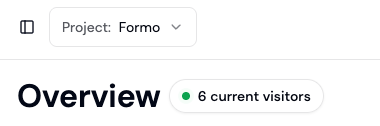
4. Click **Current Visitors** to open Live View
Click on any user or activity in the live feed to see where they are on the map. Click again to open their [wallet profile](/features/wallet-intelligence/wallet-profiles).
## When to use Live View
Live View is great for:
* **Launch day monitoring** - Watch users discover your app in real-time
* **Campaign monitoring** - See traffic spikes as campaigns go live
* **Demo dashboards** - Impress stakeholders with real-time activity
* **Incident response** - Quickly spot unusual patterns or errors
## How to use Live View
### Step 1: Open Live View
1. Go to the [Formo Dashboard](https://app.formo.so)
2. Select your project
3. Click **Overview** in the left navigation
4. Click **Current Visitors** to open Live View
 ### Step 2: Monitor activity
Events stream in real-time on an interactive globe:
* **Dots** represent user locations
* **Event cards** show recent activity
* Click any event to see full details
* Click a user to open their [wallet profile](/features/wallet-intelligence/wallet-profiles)
### Step 3: Use for presentations
Live View is perfect for team dashboards and presentations:
1. Open Live View in a browser tab
2. Expand to fullscreen mode
3. Display on a team monitor or during demos
## Next steps
View and filter all events
Drill into individual users
Get notified of important events
Build custom monitoring dashboards
### Step 2: Monitor activity
Events stream in real-time on an interactive globe:
* **Dots** represent user locations
* **Event cards** show recent activity
* Click any event to see full details
* Click a user to open their [wallet profile](/features/wallet-intelligence/wallet-profiles)
### Step 3: Use for presentations
Live View is perfect for team dashboards and presentations:
1. Open Live View in a browser tab
2. Expand to fullscreen mode
3. Display on a team monitor or during demos
## Next steps
View and filter all events
Drill into individual users
Get notified of important events
Build custom monitoring dashboards