> ## Documentation Index
> Fetch the complete documentation index at: https://docs.formo.so/llms.txt
> Use this file to discover all available pages before exploring further.
# Dashboards
> Build custom dashboards with line, bar, pie, and funnel charts to visualize analytics data. Share boards with your team for collaborative reporting.
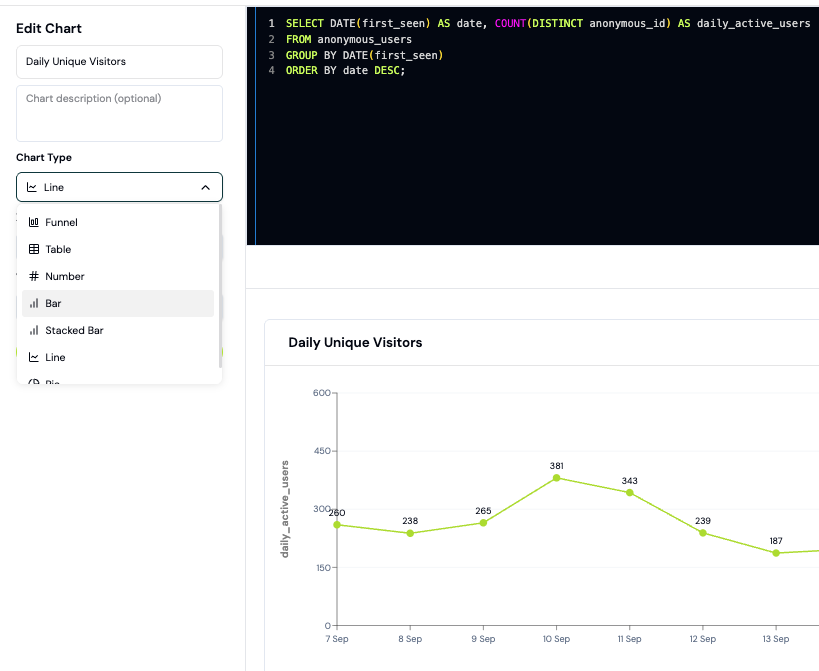 Create custom charts and reports. Turn your data into decisions with powerful visualizations and real-time insights.
Easily share insights with your team. Export and distribute reports with a single click.
## Understanding dashboards
* **Dashboards** is the section in the sidebar where you manage your visualizations
* **Boards** are individual dashboard pages that contain multiple charts
* **Charts** are the visualizations within each board
Click **Dashboards** in the sidebar to see your boards, or click **Add board** to create a new one.
## SQL Editor Autocomplete
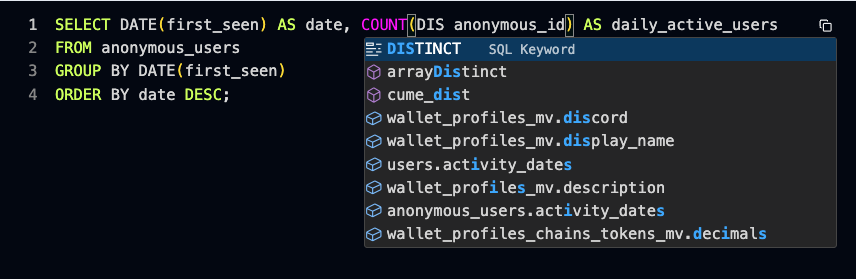
Use a SQL editor to query your data however you want. The SQL editor supports autocomplete for:
* Table names
* Table columns
* Clickhouse SQL keywords and functions
Create custom charts and reports. Turn your data into decisions with powerful visualizations and real-time insights.
Easily share insights with your team. Export and distribute reports with a single click.
## Understanding dashboards
* **Dashboards** is the section in the sidebar where you manage your visualizations
* **Boards** are individual dashboard pages that contain multiple charts
* **Charts** are the visualizations within each board
Click **Dashboards** in the sidebar to see your boards, or click **Add board** to create a new one.
## SQL Editor Autocomplete
Use a SQL editor to query your data however you want. The SQL editor supports autocomplete for:
* Table names
* Table columns
* Clickhouse SQL keywords and functions
 With Formo, your data is yours to query, transform, and export. You can also connect external [BI tools](/data/bi) directly to Formo.
## Ask Formo
Use the [Ask Formo](/features/product-analytics/ai) feature (the AI assistant) from anywhere on the dashboard to build charts and explore your data. Ask Formo to generate queries, explore patterns, surface anomalies, and recommend actions.
With Formo, your data is yours to query, transform, and export. You can also connect external [BI tools](/data/bi) directly to Formo.
## Ask Formo
Use the [Ask Formo](/features/product-analytics/ai) feature (the AI assistant) from anywhere on the dashboard to build charts and explore your data. Ask Formo to generate queries, explore patterns, surface anomalies, and recommend actions.
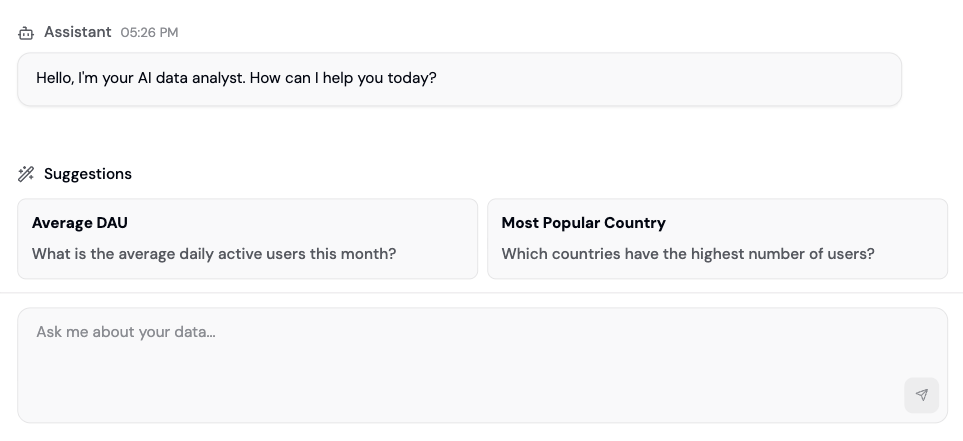 Ask Formo can:
* Build custom charts and save them to your dashboard
* Answer questions about your data
* Generate SQL queries based on natural language
* Surface hidden insights and patterns
## Text to SQL
Ask Formo to write and fix SQL code based on your instructions.
Ask Formo can:
* Build custom charts and save them to your dashboard
* Answer questions about your data
* Generate SQL queries based on natural language
* Surface hidden insights and patterns
## Text to SQL
Ask Formo to write and fix SQL code based on your instructions.
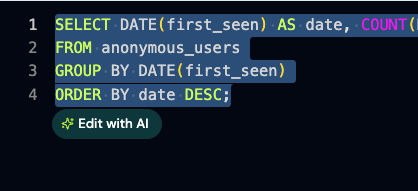 Select your query in the SQL editor and share your thoughts to get AI-assisted query generation and debugging.
## Chart Types
Here is the current list of supported chart types on Formo:
* Funnel
* Flow
* Retention
* Table
* Number
* Bar
* Line
* Pie
Add beautiful, interactive visualizations that make your data easy to understand.
## Export CSV
Export data into a CSV file for use elsewhere in your stack.
***
## How to build your first dashboard
Create a custom dashboard with charts to track your key metrics. This guide walks you through creating charts using both SQL and the AI assistant.
### Step 1: Create a board
1. Go to the [Formo Dashboard](https://app.formo.so)
2. Select your project
3. Click **Dashboards** in the left navigation
4. Click **Add board** to create a new dashboard
5. Click **Add Chart** to add your first visualization
### Step 2: Create a chart with Ask Formo (Recommended)
The easiest way to create charts is using natural language:
1. Click **Ask Formo** in the sidebar
2. Describe what you want to see:
* "Show me daily active users over the last 30 days"
* "What are my top 10 referrers by transaction count?"
* "Chart wallet connects by country this month"
3. AI generates the SQL query and chart
4. Click **Save to Dashboard**
**Example prompts:**
| Prompt | What you get |
| --------------------------------------------- | ----------------------------- |
| "Daily unique wallets last 7 days" | Line chart of wallet connects |
| "Top pages by views" | Bar chart of page rankings |
| "Conversion funnel from visit to transaction" | Funnel visualization |
| "Week-over-week retention" | Retention cohort table |
### Step 3: Create a chart with SQL
For more control, write SQL directly:
1. Click **New Chart** > **SQL Editor**
2. Write your query using Formo's schema
3. Click **Run** to preview results
4. Choose your visualization type
5. Click **Save**
**Example: Daily active wallets**
```sql theme={null}
SELECT
toDate(timestamp) AS date,
countDistinct(address) AS unique_wallets
FROM events
WHERE type = 'connect'
AND timestamp >= now() - INTERVAL 30 DAY
GROUP BY date
ORDER BY date
```
Use autocomplete (`Ctrl+Space`) to see available tables and columns. See the [Data Catalog](/data/catalog) for full documentation.
### Step 4: Choose a visualization
After running your query, select the chart type that best represents your data:
| Chart Type | Best for |
| ------------- | ------------------------- |
| **Line** | Trends over time |
| **Bar** | Comparing categories |
| **Pie** | Showing proportions |
| **Number** | Single KPI metric |
| **Table** | Detailed data exploration |
| **Funnel** | Conversion analysis |
| **Retention** | Cohort retention |
### Step 5: Organize your board
Arrange charts into a dashboard layout:
1. Open your board from **Dashboards** in the sidebar
2. Drag charts to rearrange
3. Resize charts by dragging corners
4. Group related metrics together
**Recommended dashboard layout:**
* **Top row**: Key numbers (DAU, revenue, transactions)
* **Middle**: Time-series trends
* **Bottom**: Breakdowns and tables
### Step 6: Share your dashboard
Share insights with your team:
* **Export** - Download individual charts as CSV
* **Share link** - Generate a view-only dashboard link
* **BI tools** - Connect Metabase, Tableau, or other tools via [direct database access](/data/bi)
### Example: Weekly metrics dashboard
Here's a starter dashboard with common metrics:
| Chart | Query description | Type |
| ----------------- | ----------------------------- | ------ |
| WAU | Unique wallets last 7 days | Number |
| Daily trend | Visitors per day last 30 days | Line |
| Top referrers | Referrers ranked by visitors | Bar |
| Conversion rate | Visitors who transacted | Number |
| Country breakdown | Users by country | Pie |
Use Ask Formo to generate each chart, then arrange them on your dashboard.
### Next Steps
Learn more about AI-powered analytics
Explore available tables and columns
Connect external visualization tools
Build conversion funnels
Select your query in the SQL editor and share your thoughts to get AI-assisted query generation and debugging.
## Chart Types
Here is the current list of supported chart types on Formo:
* Funnel
* Flow
* Retention
* Table
* Number
* Bar
* Line
* Pie
Add beautiful, interactive visualizations that make your data easy to understand.
## Export CSV
Export data into a CSV file for use elsewhere in your stack.
***
## How to build your first dashboard
Create a custom dashboard with charts to track your key metrics. This guide walks you through creating charts using both SQL and the AI assistant.
### Step 1: Create a board
1. Go to the [Formo Dashboard](https://app.formo.so)
2. Select your project
3. Click **Dashboards** in the left navigation
4. Click **Add board** to create a new dashboard
5. Click **Add Chart** to add your first visualization
### Step 2: Create a chart with Ask Formo (Recommended)
The easiest way to create charts is using natural language:
1. Click **Ask Formo** in the sidebar
2. Describe what you want to see:
* "Show me daily active users over the last 30 days"
* "What are my top 10 referrers by transaction count?"
* "Chart wallet connects by country this month"
3. AI generates the SQL query and chart
4. Click **Save to Dashboard**
**Example prompts:**
| Prompt | What you get |
| --------------------------------------------- | ----------------------------- |
| "Daily unique wallets last 7 days" | Line chart of wallet connects |
| "Top pages by views" | Bar chart of page rankings |
| "Conversion funnel from visit to transaction" | Funnel visualization |
| "Week-over-week retention" | Retention cohort table |
### Step 3: Create a chart with SQL
For more control, write SQL directly:
1. Click **New Chart** > **SQL Editor**
2. Write your query using Formo's schema
3. Click **Run** to preview results
4. Choose your visualization type
5. Click **Save**
**Example: Daily active wallets**
```sql theme={null}
SELECT
toDate(timestamp) AS date,
countDistinct(address) AS unique_wallets
FROM events
WHERE type = 'connect'
AND timestamp >= now() - INTERVAL 30 DAY
GROUP BY date
ORDER BY date
```
Use autocomplete (`Ctrl+Space`) to see available tables and columns. See the [Data Catalog](/data/catalog) for full documentation.
### Step 4: Choose a visualization
After running your query, select the chart type that best represents your data:
| Chart Type | Best for |
| ------------- | ------------------------- |
| **Line** | Trends over time |
| **Bar** | Comparing categories |
| **Pie** | Showing proportions |
| **Number** | Single KPI metric |
| **Table** | Detailed data exploration |
| **Funnel** | Conversion analysis |
| **Retention** | Cohort retention |
### Step 5: Organize your board
Arrange charts into a dashboard layout:
1. Open your board from **Dashboards** in the sidebar
2. Drag charts to rearrange
3. Resize charts by dragging corners
4. Group related metrics together
**Recommended dashboard layout:**
* **Top row**: Key numbers (DAU, revenue, transactions)
* **Middle**: Time-series trends
* **Bottom**: Breakdowns and tables
### Step 6: Share your dashboard
Share insights with your team:
* **Export** - Download individual charts as CSV
* **Share link** - Generate a view-only dashboard link
* **BI tools** - Connect Metabase, Tableau, or other tools via [direct database access](/data/bi)
### Example: Weekly metrics dashboard
Here's a starter dashboard with common metrics:
| Chart | Query description | Type |
| ----------------- | ----------------------------- | ------ |
| WAU | Unique wallets last 7 days | Number |
| Daily trend | Visitors per day last 30 days | Line |
| Top referrers | Referrers ranked by visitors | Bar |
| Conversion rate | Visitors who transacted | Number |
| Country breakdown | Users by country | Pie |
Use Ask Formo to generate each chart, then arrange them on your dashboard.
### Next Steps
Learn more about AI-powered analytics
Explore available tables and columns
Connect external visualization tools
Build conversion funnels