> ## Documentation Index
> Fetch the complete documentation index at: https://docs.formo.so/llms.txt
> Use this file to discover all available pages before exploring further.
# Activity feed
> View a real-time event stream of user actions including page views, wallet connects, signatures, and transactions to understand product usage.
Track every user interaction with powerful real-time event analytics. Formo automatically captures page views, wallet connects, signatures, and transactions on your app.
You can also track [custom events](/features/product-analytics/custom-events) and [contract events](/features/product-analytics/contract-events).
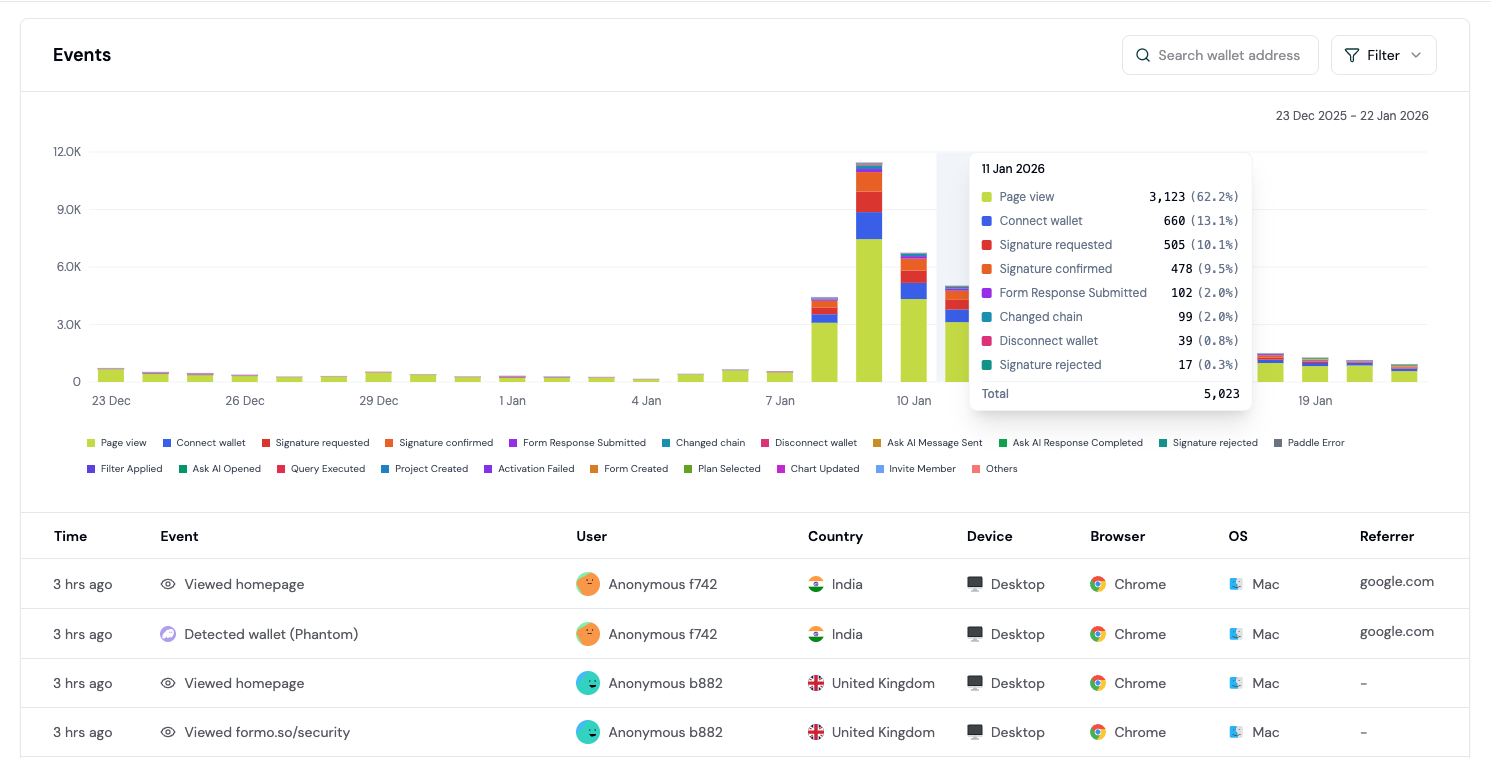 Get full visibility on key touchpoints in the user lifecycle to identify drop-off points and boost retention. You can see what users do, full event properties, and other data without sampling.
## Filter by event properties
Filter the activity feed by event properties to focus on specific user actions or behaviors.
Get full visibility on key touchpoints in the user lifecycle to identify drop-off points and boost retention. You can see what users do, full event properties, and other data without sampling.
## Filter by event properties
Filter the activity feed by event properties to focus on specific user actions or behaviors.
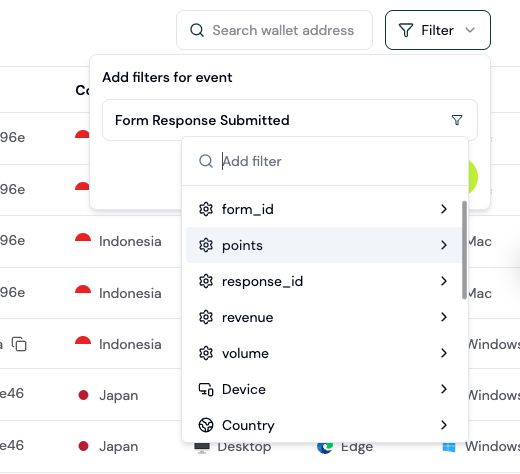 Use filters to narrow down events by any property, making it easy to investigate specific user journeys or troubleshoot issues.
***
## How to use the activity feed
The Activity Feed is your real-time view into what users are doing on your app. This guide shows you how to use it for investigation and user research.
### Step 1: Open the Activity Feed
Open [app.formo.so](https://app.formo.so).
You'll see a chronological stream of all events on your app.
### Step 2: Understand event types
Each event has a structured schema and type based on the [event specs](/data/events/overview):
| Event Type | What it captures |
| ------------- | ----------------------- |
| `page` | Page view with URL path |
| `connect` | Wallet connection |
| `disconnect` | Wallet disconnection |
| `signature` | Message signing |
| `transaction` | Onchain transaction |
| `track` | Custom events |
| `decoded_log` | Smart contract events |
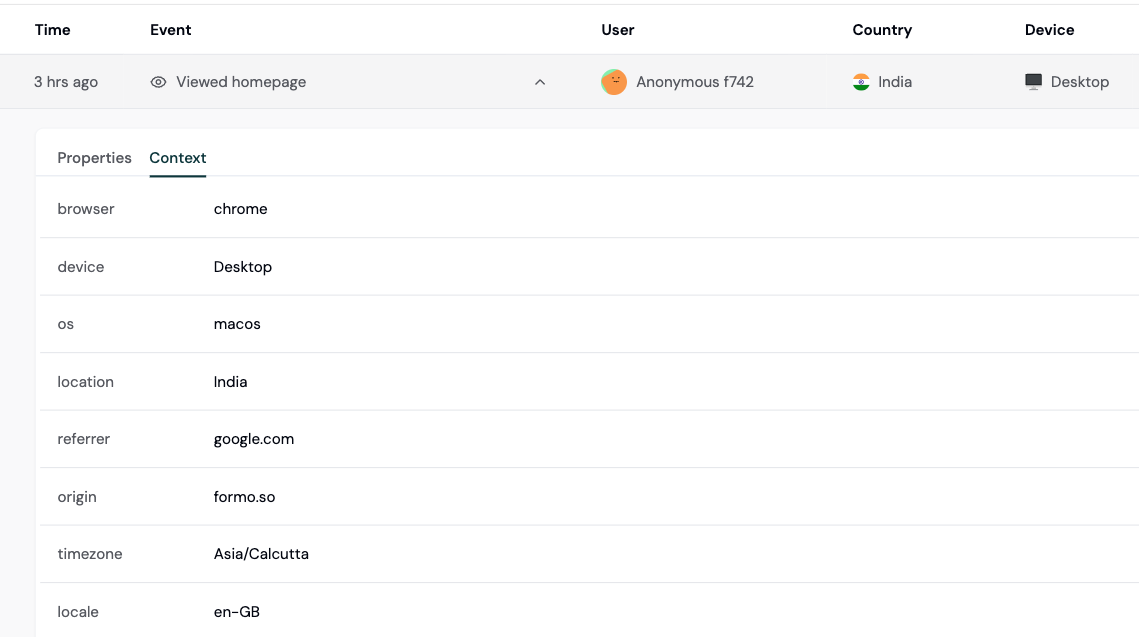
Click any event to expand and see all properties.
Use filters to narrow down events by any property, making it easy to investigate specific user journeys or troubleshoot issues.
***
## How to use the activity feed
The Activity Feed is your real-time view into what users are doing on your app. This guide shows you how to use it for investigation and user research.
### Step 1: Open the Activity Feed
Open [app.formo.so](https://app.formo.so).
You'll see a chronological stream of all events on your app.
### Step 2: Understand event types
Each event has a structured schema and type based on the [event specs](/data/events/overview):
| Event Type | What it captures |
| ------------- | ----------------------- |
| `page` | Page view with URL path |
| `connect` | Wallet connection |
| `disconnect` | Wallet disconnection |
| `signature` | Message signing |
| `transaction` | Onchain transaction |
| `track` | Custom events |
| `decoded_log` | Smart contract events |
Click any event to expand and see all properties.
 ### Step 3: Filter to find specific events
Use filters to narrow down the feed:
**Common filter combinations:**
| Goal | Filters |
| -------------------------------- | ----------------------------------------- |
| Connects from Twitter | type = connect, referrer contains twitter |
| Visitors from marketing campaign | utm\_source = newsletter |
| Events from mobile devices | device = mobile |
| Failed transactions | type = transaction, status = failed |
| Wallet connects from Twitter | type = connect, referrer contains twitter |
| Specific user's activity | address = 0x... |
| Events on a specific page | path = /swap |
| High-value transactions | type = transaction, value > 1000 |
### Step 4: Investigate a user's journey
To see everything a specific user did:
See [Wallet Profiles](/features/wallet-intelligence/wallet-profiles) for more details.
### Step 3: Filter to find specific events
Use filters to narrow down the feed:
**Common filter combinations:**
| Goal | Filters |
| -------------------------------- | ----------------------------------------- |
| Connects from Twitter | type = connect, referrer contains twitter |
| Visitors from marketing campaign | utm\_source = newsletter |
| Events from mobile devices | device = mobile |
| Failed transactions | type = transaction, status = failed |
| Wallet connects from Twitter | type = connect, referrer contains twitter |
| Specific user's activity | address = 0x... |
| Events on a specific page | path = /swap |
| High-value transactions | type = transaction, value > 1000 |
### Step 4: Investigate a user's journey
To see everything a specific user did:
See [Wallet Profiles](/features/wallet-intelligence/wallet-profiles) for more details.
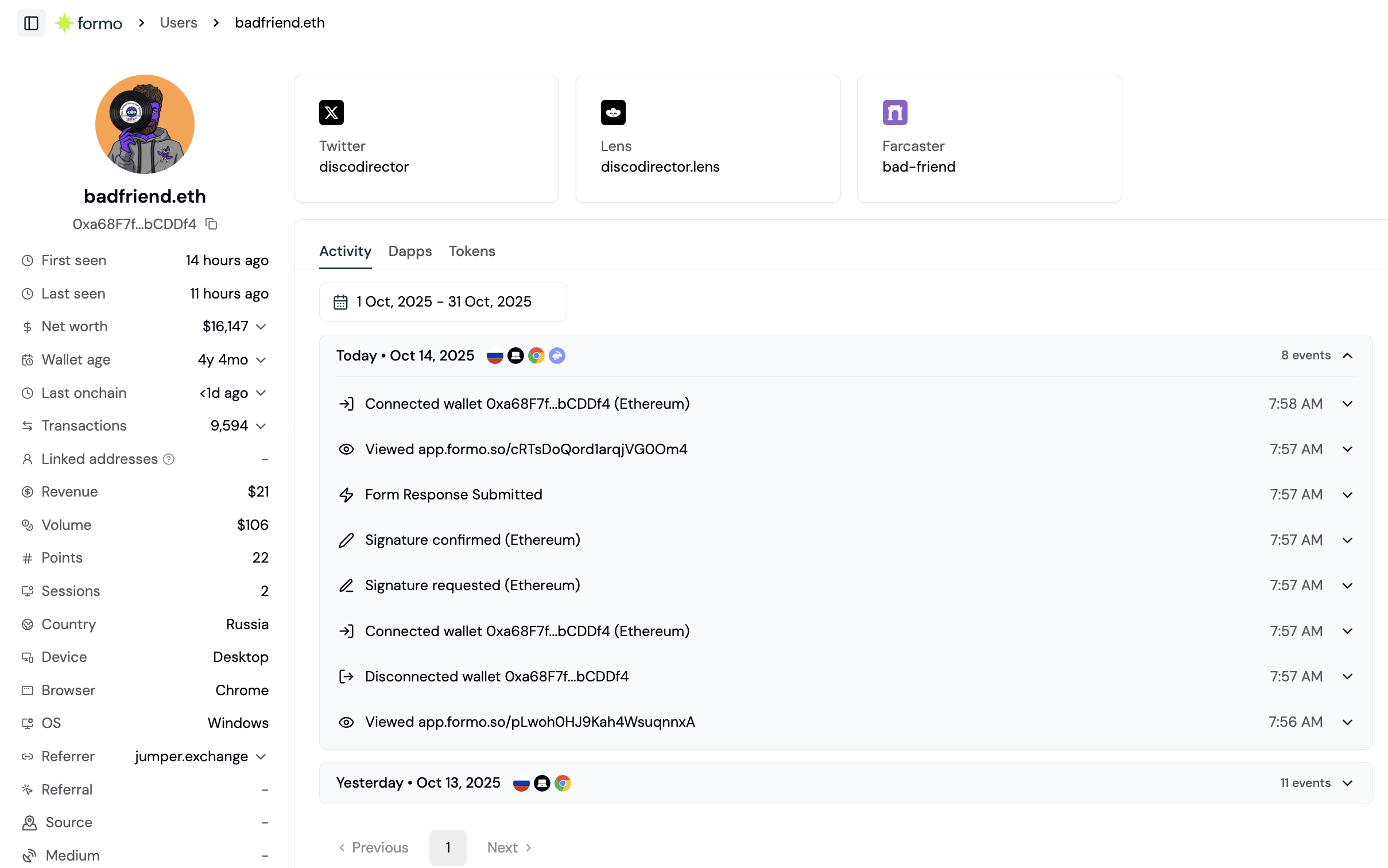 Or filter the Activity Feed:
### Step 5: Investigate issues
When users report problems, use the Activity Feed to investigate:
**Investigating a failed transaction:**
**Investigating a drop-off:**
See [Funnels](/features/product-analytics/funnels) for more details.
**Investigating a flow issue:**
See [Flows](/features/product-analytics/flows) for more details.
### Common investigation patterns
**"Why are users bouncing from our swap page?"**
**"Which transactions are failing?"**
**"What do our best users do differently?"**
**"Is our new feature being used?"**
### Next Steps
Real-time activity on a globe
Drill into individual users
Track more actions in the feed
Get notified of important events
Or filter the Activity Feed:
### Step 5: Investigate issues
When users report problems, use the Activity Feed to investigate:
**Investigating a failed transaction:**
**Investigating a drop-off:**
See [Funnels](/features/product-analytics/funnels) for more details.
**Investigating a flow issue:**
See [Flows](/features/product-analytics/flows) for more details.
### Common investigation patterns
**"Why are users bouncing from our swap page?"**
**"Which transactions are failing?"**
**"What do our best users do differently?"**
**"Is our new feature being used?"**
### Next Steps
Real-time activity on a globe
Drill into individual users
Track more actions in the feed
Get notified of important events